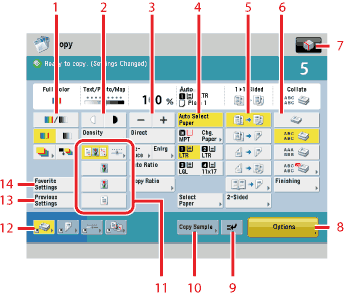
| 1 |
Color Mode
You can select the color mode. (See "Automatic Color Selection.") |
2 |
Adjusting Exposure, Automatic Adjustment of Exposure
You can adjust the copy exposure. (See "Adjusting Copy Exposure.") |
| 3 |
Copy Ratio
You can set the machine to select the copy ratio automatically, or you can manually specify the copy ratio for a copy job. (See "Specifying the Copy Ratio by Percentage (Zoom by Percentage)," "Enlarging/Reducing Originals to a Standard Size (Preset Zoom)," "Automatically Setting the Copy Ratio Based on the Original and Copy Paper Sizes (Auto Zoom)," "Slightly Reducing Images to Prevent the Original Periphery from Being Trimmed (Fit to Page)," "Calculating the Copy Ratio Based on the Original and Copy Paper Sizes (Set Ratio by Length)," "Enlarging/Reducing Originals with Copy Ratios Set Independently for the X and Y Axes (Set XY Ratio)." |
4 |
Paper Select
You can set the machine to select the paper size. (See "Selecting the Copy Paper Size (Paper Select).") |
| 5 |
2-Sided
This mode enables you to make two-sided copies from one-sided originals or one-sided copies from two-sided originals. (See "Making Two-Sided Copies from One-Sided Originals (1-Sided to 2-Sided)", "Making Two-Sided Copies from Two-Sided Originals (2-Sided to 2-Sided)", "Making One-Sided Copies from Two-Sided Originals (2-Sided to 1-Sided)", "Making Two-Sided Copies from Facing Pages in a Book (Book to 2-Sided).") |
6 |
Finishing
The Finishing mode can be selected to collate copies in various ways, either by pages or copy sets. (See "Collating Copies into Sets in Page Order (Collate)," "Collating Copies into Groups of the Same Page (Group)," "Collating Pages and Stapling (Staple).") |
| 7 |

You can specify the following four settings.
- Register/Edit Favorite Settings
- Register Options Shortcuts
|
8 |
Options
Press to select a Options mode. [Finishing], [2-Sided], [Density], and [Original Type] are displayed on the Regular Copy Basic Features screen as default and are the [Options] shortcuts. (See "What are Options?.") |
| 9 |
Interrupt Mode
The Interrupt mode enables you to interrupt a reserved or current job long enough to make higher priority copies. (See "Interrupting the Current Job to Make Priority Copies (Interrupt Mode).") |
10 |
Copy Sample
This mode enables you to check the copy result before making multiple copies. (See "Copy Sample.") |
| 11 |
Image Quality
You can adjust image quality to the level best suited for the quality of text or photo originals. (See "Selecting Image Quality.") |
12 |
Shortcuts to [Options]
You can set up to six shortcuts. (See "Setting Shortcuts.") |
| 13 |
Previous Settings
This function enables you to recall the three most recently performed copy settings, and make copies using those settings. (See "Recalling a Previous Copy Setting (Previous Settings).") |
14 |
Favorite Settings
You can store any possible combination of Copy functions. A Favorite Setting button can be named and can hold up to nine settings. (See "Registering Favorite Settings," "Renaming a Favorite Settings Button, " "Recalling Favorite Settings," "Deleting Favorite Settings.") |