Copy > Making a Copy With the Express Copy Basic Features Screen > Collating Copies into Sets in Page Order (Collate)
*
Collating Copies into Sets in Page Order (Collate)

Return to Overview


For instructions on this procedure using the Regular Copy Basic Features screen, see "Page Order (Collate)."


Remark
  • The Finishing modes cannot be set if [Custom Size], [Envelopes], [Transparencies], [Tracing Paper], or [Labels] is selected as the paper type.
  • The Finishing modes cannot be set for paper less than 16 lb bond (60g/m2). Do not select the Finishing modes.

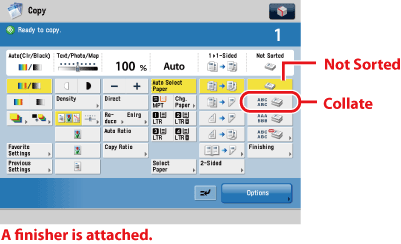
  1. Press [Collate].

Press [Not Sorted] if you do not want to collate the output.

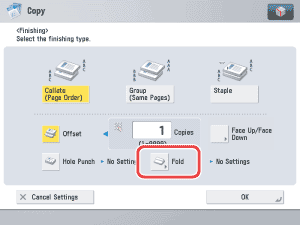
If you want the copies slightly offset vertically in the output tray, press [Finishing] → [Offset].

If you want hole punches made, press [Finishing] → [Hole Punch].

If folding is performed when the Paper Folding Unit-G1 or Document Insertion/Folding Unit-G1 is attached, press [Fold Type] → select fold type → press [OK].

If saddle folding is performed when the optional Paper Folding Unit-G1 is not attached, press [Saddle Fold] → [OK].

  • To set the amount of shift, specify a range between 1 and 9999. If a value outside of the range that can be specified is entered, a message for an appropriate value is displayed.

To specify whether the printed sheets are output face up or face down, press [Face Up/Face Down] → select from the following:

Details of each item are shown below.

[Auto]: If you are copying a single page original, or copying on nonstandard size paper, or other available paper that is loaded, the printed sheets are output face up. Otherwise, the printed sheets are output face down.
[Face Down (Normal)]: Printed sheets are always output face down.
[Face Up (Reverse)]: Printed sheets are always output face up.

If you want the copies to be output in alternating directions, press [Finishing] → [Rotate 90 Degrees].

  • [Rotate 90 Degrees] can be selected only in the following cases:
  • When the available paper size is selected manually
  • When the available paper size is loaded in both the horizontal and vertical directions
  • The selected paper source must have [Paper Drawer Auto Selection On/Off] set to 'On'. (See "Setting the Paper Drawer Auto Selection On/Off.")
  • When you have selected Automatic Paper Selection for the Rotate 90 Degrees mode, make sure to load only paper that can be rotated. Otherwise, the output will not be rotated.
  • If there is no paper which can be rotated, the output will be collated.

  • Back To Top