Copy > Making a Copy With the Express Copy Basic Features Screen > Copy Sample

*
Copy Sample

Return to Overview


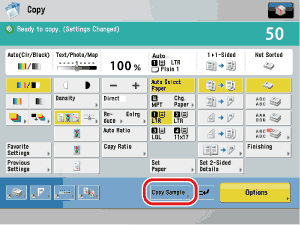
For instructions on this procedure using the Regular Copy Basic Features screen, see "Copy Sample."


Remark
  • [Copy Sample] appears only if you set to make multiple copies of your original in the Collate, Offset Collate, Rotate Collate, Staple, Add Cover, Insert Sheets, Booklet, or Transparency Cover Sheets mode. [Copy Sample] does not appear if the Group or Offset Group mode is set.

  1. Place your originals → select the desired copy modes → press [Copy Sample].

  1. Press (Start).
  1. Check the sample set → select [Start Copying], [Stop], or [Change Settings].

To make the remaining copies, press [Start Copying].

To cancel copying, press [Stop].

To change the copy settings, press [Change Settings] → change the necessary settings → press [OK].

  • To change the number of copies, use - (numeric keys) and (Clear) to clear your entry.
  • To change the exposure, press [] or []. (See "Adjusting Copy Exposure.")
  • To change the paper size, press [Paper Select]. (See "Selecting the Copy Paper Size (Paper Select).")
  • To collate the copies, press [Finishing]. (See "Making a Copy With the Express Copy Basic Features Screen.")
  • To make two-sided copies, press [2-Sided Copy]. (See "Making a Copy With the Express Copy Basic Features Screen.")
  • To set a gutter for binding, press [Gutter]. (See "Gutter Mode.")
  • To embed hidden text in the background, press [Secure Watermark]. (See "Embedding Hidden Text in the Background.")

If you print one sample set and then change the settings, the machine will print from the first set with the new settings.

If you want to check the changes that you have made, press [Copy Sample] arrow repeat the procedure from step 2.


  • Back To Top