Copy > Copy Sample
*
Copy Sample

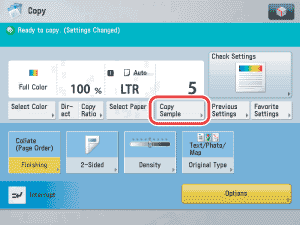
This mode enables you to check the copy result before making multiple copies.


Remark
  • [Copy Sample] appears only if you set to make multiple copies of your original in the Collate, Offset Collate, Rotate Collate, Staple, Add Cover/Insert Sheets, Booklet, or Transparency Cover Sheets mode. [Copy Sample] does not appear if the Group or Offset Group mode is set.
  • For information on the modes which cannot be set in combination with this mode, see "Combination of Functions Chart."
  • The machine's counter counts the sample set as a copy.

  1. Place your originals → set the desired copy modes → press [Copy Sample].

  • [Copy Sample] is not displayed if only one set of copies is set.
  1. Select [All Pages] or [Specified Pages] → press [OK].
  • If you select [Specified Pages]:

  • If you select [Specified Pages]:
  • Press [First Page] and [Last Page] → press [-] or [+] to set their respective page numbers.

  1. Press (Start).
  • If you select [Specified Pages], specify the page numbers of the output. Note that the page numbers of the output may be different from those of the original.
  • If you select [Specified Pages], the Staple, Hole Punch, Fold, or Booklet mode cannot be set.
  • You cannot change [All Pages] to [Specified Pages] or vice versa after the copy sample is output.
  • If you select [Specified Pages], you cannot change the specified pages after the copy sample is output.
  1. Check the sample set → select [Start Copying], [Stop], [Change Settings] or [Print Density].
  • To print the remaining prints:
  • To cancel copying:
  • To change the copy settings:
  • To change the print density:

  • To print the remaining prints:
  • Press [Start Copying].

  • To cancel copying:
  • Press [Stop].

  • To change the copy settings:
  • Press [Change Settings] → change the necessary settings → press [OK].

To enter the number of copies, use - (numeric keys) and (Clear) to clear your entry.

To change the paper size, press [Paper Select]. (See "Paper Selection.")

To make two-sided copies, press [2-Sided Copy]. (See "Two-Sided Copying.")

To collate the copies, press [Finishing]. (See "Collating Copies.")

To set a gutter for binding, press [Gutter]. (See "Gutter Mode.")

To embed hidden text in the background, press [Secure Watermark]. (See "Embedding Hidden Text in the Background.")

If you print one sample set and then change the settings, the machine will print from the first set with the new settings.

If you want to check the changes that you have made, press [Copy Sample].


  • To change the print density:
  • Press [] or [] to adjust the density.

If you want to check the changes that you have made, press [Copy Sample].


  • Back To Top