Copy > Gutter Mode
*
Gutter Mode

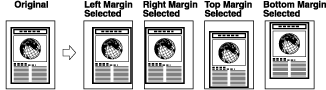
This mode enables you to make copies or prints with the entire original image shifted by a designated width to the left, right, top, or bottom in order to create a gutter on the copies. Use this mode to make copies or prints ready for placement in ring binders.


Remark
  • For information on the modes which cannot be set in combination with this mode, see "Combination of Functions Chart."
  • The Gutter mode shifts the entire original image by the designated width. Therefore, an original whose image extends all the way to the edges of the sheet may be partially cut off on the copy.
  • You can choose to only create a gutter on the back side of a copy. Therefore, originals that already have a gutter can be copied in the 1-Sided2-Sided mode or 2-Sided1-Sided mode.

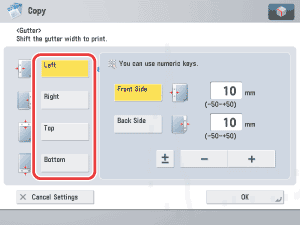
  1. Place your originals → press [Options] → [Gutter].
  1. Select the desired gutter type.

  1. Select [Front Side] or [Back Side] → press [-] or [+] to set the gutter width → press [OK].
  • If you are using the Gutter and 2-Sided modes together and copying or printing a document that already has a gutter, follow the instructions below:
  • 1-Sided2-Sided:
Set the Gutter mode for the back only.
  • 2-Sided2-Sided:
You do not need to set the Gutter mode. Proceed to make copies or prints in the usual way.
  • 2-Sided1-Sided:
Set the Gutter mode for the back only.
  • If you are using the Gutter and 2-Sided modes together and copying or printing a document that does not have a gutter, follow the instructions below:
  • 1-Sided2-Sided:
Set the Gutter mode for both the front and back.
  • 2-Sided2-Sided:
Set the Gutter mode for both the front and back.
  • 2-Sided1-Sided:
Set the Gutter mode for both the front and back.
  • If you enter a value other than 0, you can switch between positive and negative gutter width by pressing [±].
    Example: (+)10 → [±] → -10
    -50 → [±] → (+)50

  • Back To Top