






| Embedding Hidden Text in the Background |
|
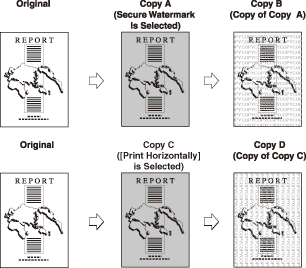
The Secure Watermark mode enables you to embed hidden text in the background of copies. You can embed text such as "CONFIDENTIAL," the date and time, or a department name. The embedded text appears when the copies are copied.
|
| Remark |
|
|
|||||
|
If [Serial Number] is selected, the Serial Number, displayed on the bottom left of the screen when you press If [ID/User Name] is selected and you are using a login service, the current ID or user name is printed on the output.
|
 (Counter Check) or [Counter Check] on the control panel, is printed on the output.
|
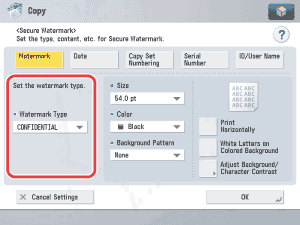
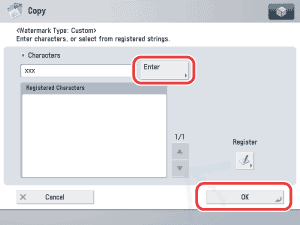
You can also select the text which has been registered in [Register Characters for Page No./Watermark] in [Function Settings] (Settings/Registration).
|
|
 -
-  (numeric keys) → select the date format from the Date Type drop-down list.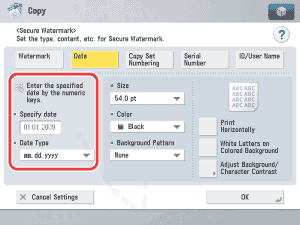
|
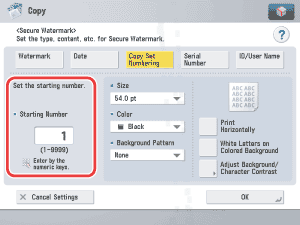
Select the text size from [36.0 pt], [54.0 pt], and [72.0 pt].
You can select [Magenta], [Cyan], or [Black] for the color of the text.
If you do not want to add the Background Pattern, select [None].
|
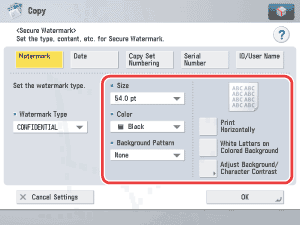
If you do not want to adjust the contrast, proceed to step 5.
The sample print is output.
Refer to the sample print to adjust [Relative Contrast]. If you increase the value for [Relative Contrast], the text gets denser, and if you decrease the value, the text gets lighter. The setting range for the Relative Contrast Value will differ, depending on the Standard Value Settings you have set.
|
 ] [
] [ ].
].
|
A standard value sample print is output.
|
Refer to the sample print to adjust the standard value. If you increase the standard value, the text gets denser, and if you decrease the value, the text gets lighter.
|
|
If you increase the value for [Latent Area Density], the embedded text gets denser, and if you decrease the value, the text gets lighter.
|
|