Basic Operations for Scanning Originals
This section describes the basic operations for scanning originals.
1
Place the original. Placing Originals
2
Press <Scan and Send> on the Main Menu. <Main Menu> Screen
3
Specify the destination on the Scan Basic Features screen. Scan Basic Features Screen
Specifying Destinations from the Address Book
Specifying Destinations from One-Touch Buttons
Entering Destinations Manually
Specifying Destinations in the LDAP Server
Specifying Your Own E-Mail Address
Specifying Personal Folder
Specifying Destinations from the Address Book of a Mobile Device

To specify e-mail destinations as Cc or Bcc, press <Cc Bcc>  <Cc> or <Bcc> <Specify Destinations> specify destinations.
<Cc> or <Bcc> <Specify Destinations> specify destinations.To specify multiple destinations, press <Specify Destinations> and specify an additional destination.
To delete a destination, select the destination you want to delete, and press <Delete Dest.>.
Specifying Destinations from the Address Book
1
Press <Address Book>.
2
Select the destination and press <OK>.
If an access number is set when the destination is registered, press <Access No.> and enter the access number using the numeric keys. The corresponding destination is displayed in the Address Book.
To use the Remote Address Book, press <To Remote Address Book>. When <Change Address Book> is displayed, press <Change Address Book> <Remote>.
<Remote>.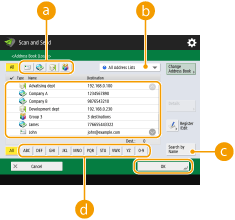
 Destination type buttons
Pressing ,
,  , and
, and displays e-mail, file server, and group destinations, respectively.
, , anddisplays e-mail, file server, and group destinations, respectively. Drop-down list for selection of Address Book types
When you are logged in to the machine with personal authentication management, selecting <Personal Address List> displays your personal Address Book. You can also display dedicated user group address lists (User Group Address Lists) in which you are included.
 <Search by Name>
Enables you to search the destination by the name you are entering.
 Search buttons by first letter
Enables you to narrow down a search by the first letter of the destination name.
Back to Top
Specifying Destinations from One-Touch Buttons
1
Press <One-Touch>.
2
Select the desired one-touch button and press <OK>.
To specify the destination using a one-touch button number (one-touch number), press  and enter the number for the desired one-touch button.
and enter the number for the desired one-touch button.To use the Remote Address Book, press <To Remote Address Book>.

Back to Top
Entering Destinations Manually
You can specify destinations manually that are not registered in the Address Book or one-touch buttons.
1
Press <New Destination> and select <E-Mail> or <File>.
Selecting <Store in Mail Box> enables you to save scanned documents in the Mail Box of the machine.
Selecting <I-Fax> enables you to send scanned documents as a fax via the Internet.
2
Specify the destination and press <OK>.
If you select <File> in step 1, specify the settings such as the IP address of a file server and the path of the save location folder. For details about the setting items, consult your network administrator.
Back to Top
Specifying Destinations in the LDAP Server
You can search and specify destinations registered in the LDAP server.
1
Press <Address Book>.
2
Press <To LDAP Server>.

When <Change Address Book> is displayed, press <Change Address Book> <LDAP Server>.
<LDAP Server>.If the network password input screen is displayed, enter the user name and password and press <OK>.
3
When searching destinations in the LDAP server, press either <Search by Conditions> or <Search by Name>.

To display all the destinations in the LDAP server, proceed to step 4.
 When searching by conditions
Press <Search by Conditions>, specify the search conditions on the screen, and press <Start Searching>.
 Search categories
Select a criterion to search for destinations from name, e-mail address, organization name, and organization unit (department name, etc).
Search conditionsSelect a search condition such as a destination name that contains "John" and a department name that begins with "Development."
Search charactersPress <Set> and enter search characters for the search condition.

To search with multiple conditions
You can search destinations with multiple conditions. Specify the first search condition, press <Add Search Condition>, and then select <or> or <and> for the next condition.
To change conditions and search again
Press <Delete> to delete the specified contents, and specify the conditions again.
When searching by name
Press <Search by Name> enter the text to search press <OK>.
enter the text to search press <OK>.You can specify attributes used when performing "Search by Name" for a destination from the LDAP server. Configuring to "Search by Name" for LDAP Searches
4
Select the destination and press <OK>.

Back to Top
Specifying Your Own E-Mail Address
You can specify the e-mail address of the user who is logged in to the machine with personal authentication management.
1
Press <Send to Myself>.
The e-mail address of the user who is logged in to the machine is specified as the destination.
Back to Top
Specifying Personal Folder
You can specify the personal folder of the user who is logged in to the machine with personal authentication management.
1
Specify <Personal Folder>.
The personal folder of the user who is logged in to the machine is specified as destination.
Back to Top
Specifying Destinations from the Address Book of a Mobile Device
You can specify a destination from the address book of a mobile device.
To use this function, you must install the "Canon PRINT Business" application to your mobile device. Utilizing the Machine through Applications
To use this function, you must install the "Canon PRINT Business" application to your mobile device. Utilizing the Machine through Applications
1
Connect to the mobile device. Linking with Mobile Devices
2
Send the address from the mobile device to the machine.
For detailed information on operations using the mobile device, see "Canon PRINT Business Help."
You can send information including the subject, message body, and file name from the mobile device to the machine. Utilizing the Machine through Applications
Back to Top
4
Specify the scan settings as necessary.
Selecting a File Format
Selecting Resolution
Specifying the Scanning Size of Originals
Selecting Color Scan/Black & White Scan
Scanning Both Sides of Originals
Enlarging or Reducing
Selecting a File Format
 |
|
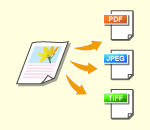
Scanned originals are converted into electronic files such as PDF. Select the file format according to your purposes and environment of use.
|
1
Press the setting button for file format.

2
Select the file format.
If you select <PDF>, <XPS>, or <OOXML>, you can specify various additional settings.
If you selected <JPEG> or <TIFF>, there are no further operations. Press <OK>.
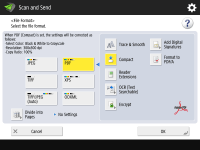
<JPEG>
This file format is suitable for photographic originals. Multiple-page originals will be divided into one file per page.
<TIFF>
This file format is suitable for graphical originals. Originals are scanned in black and white.
<PDF>
This file format is suitable for text documents. Documents can be displayed in the same way on any computer, regardless of the operating system used.
<XPS>
This is a file format taken from Windows Vista. Documents can be displayed in the same way on any Windows computer, regardless of the operating system used.
<OOXML>
This file format can be edited in Microsoft Office Word or PowerPoint.
 |
|
You cannot select <OOXML> if you are sending a file stored in <Mail Box> of <Access Stored Files> or <Memory RX Inbox> of <Fax/I-Fax Inbox>.
|
|
|
|
PDF (Compact) or XPS (Compact) is only valid with the following settings:
Select Color: Color mode other than the Black-and-White mode
Resolution: 300x300 dpi
Copy Ratio: 100% or Auto
When creating files by pagesTo scan a multiple-page original and save each page as a separate file instead of saving all pages as a single file, press <Divide into Pages>.
To specify the number of pages to include in each file, after pressing <Divide into Pages>, specify the desired number of pages.
To save each page as a separate file, specify <1> for the number of pages.
If you select <TIFF/JPEG>, each page will automatically be created as a separate file.
You cannot specify the number of pages to include in one file if you are currently using the <Scan and Store> function.
|
|
TIPS
|
|
Installing an option can expand functions for scanning to create files. For information on the required optional products and on the file formats, see System Options.
|
Back to Top
Selecting Resolution
 |
|
To scan an original clearly, increase the resolution. To reduce the file size, decrease the resolution.
|
1
Press the setting button for resolution.

2
Select the resolution and press <OK>.
Depending on the file format you are selecting, the resolution that you can select is limited.
Back to Top
Specifying the Scanning Size of Originals
 |
|
If you are scanning free size/highly transparent originals, or the edge of image is missing when scanning, you need to manually specify the scanning size.
|
1
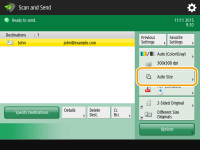
Press the setting button for scanning size.
2
Select the scanning size and press <OK>.
When scanning a free size original
Place the original in the feeder and select <Free Size>.
When specifying the values of scanning size
Place the original on the platen glass, select <Custom>, and enter the height and width of the original.
When scanning a long original
Place the original in the feeder and select <Long Original>.
|
|
To register the scanning sizeIf you frequently specify the scanning size with the same values, register the size in <Custom>
<Register Size> to quickly recall the setting for convenience. |
Back to Top
Selecting Color Scan/Black & White Scan
 |
|
You can specify color when scanning original.
|
1
Press the setting button for color.
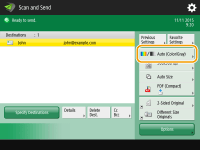
2
Select the color and press <OK>.
Depending on the file format you are selecting, the setting item that you can select is limited.
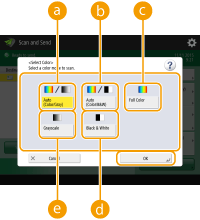 <Auto (Color/Gray)>
Determines automatically what color is used for scanning according to the color of an original. For example, color pages are scanned in color, and monochrome pages are scanned in grayscale (monochrome gradation).
<Auto (Color/B&W)>Determines automatically what color is used for scanning according to the color of an original. For example, colored pages are scanned in color, and monochrome pages are scanned in black and white. Select this mode when text is faint with <Auto (Color/Gray)>, or when the original mainly consists of text.
<Full Color>Scans in color regardless of a document's color. Depending on the state of the color original, it may be detected as black and white when scanned, even if you set <Auto (Color/B&W)>. To avoid this, set the color mode to <Full Color>.
<Black & White>Scans in black and white regardless of an original's color. This mode is automatically set for the TIFF file format.
 <Grayscale>
Scans in grayscale regardless of an original's color. This mode uses different shades of color, such as black, dark gray, gray, light gray, and white, making color look more natural and beautiful compared with <Black & White>.
Back to Top
Scanning Both Sides of Originals
 |
|
The machine can automatically scan both the front and back sides of an original.
|
|
|
|
Place the original in the feeder. For landscape-oriented originals, place them horizontally.
|
1
Press <2-Sided Original>.
2
Select <Book Type> or <Calendar Type> and press <OK>.

Select <Book Type> for originals whose images on the front and back sides face the same direction, or <Calendar Type> for originals whose images on the front and back sides face in opposite directions.
Back to Top
Enlarging or Reducing
 |
|
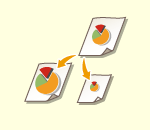
You can enlarge or reduce standard size original to other standard sizes when scanning.
Enlarging or Reducing in Standard Paper Sizes
|
|
|
|
|
 |
|
You can enlarge or reduce by specifying magnification (%).
Enlarging or Reducing by Specifying Magnification
|
|
|
|
|
 |
|
You can enlarge or reduce to automatically fit the paper size selected.
Enlarging and Reducing to Fit the Finished Paper Size
|
Enlarging or Reducing in Standard Paper Sizes
1
Press <Options> <Copy Ratio>.
<Copy Ratio>.2
To reduce, select magnification from , to enlarge, select magnification from and press <OK>.
, to enlarge, select magnification from and press <OK>.
If you want to use Preset Zoom to perform the following enlargements, place your originals horizontally.
LTR to 11" x 17"
STMT to 11" x 17"
3
Press <Close>.
Back to Top
Enlarging or Reducing by Specifying Magnification
1
Press <Options> <Copy Ratio>.
<Copy Ratio>.2
Specify magnification and press <OK>.

3
Press <Close>.
Back to Top
Enlarging and Reducing to Fit the Finished Paper Size
1
Press <Options> <Copy Ratio>.
<Copy Ratio>.2
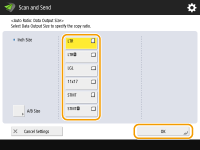
Press <Auto>, specify the finished size, and then press <OK>.
Depending on the resolution you are selecting, you cannot specify the finished size.
3
Press <Close>.
Back to Top
5
Press  .
.
.Originals are scanned and sending/saving starts.
To cancel scanning, press <Cancel> or  <Yes>.
<Yes>.When <Press the [Start] key to scan the next original.> is displayed
Place the next original to scan and press  . When scanning all of the originals is complete, press <Start Sending> to send/save the file.
. When scanning all of the originals is complete, press <Start Sending> to send/save the file.Depending on the communication settings, you may be prompted to enter the user name and password. Setting E-mail/I-Fax Communication
|
|
To check the statuses for sent/saved documentsOn the <Status Monitor/Cancel> screen, you can check the statuses for sent/saved documents. This screen enables you to send/save documents again or cancel sending/saving after checking the statuses. Checking Status and Log for Scanned Documents
When <Display Notification When Job Is Accepted> is set to <On>, the <Status Monitor/Cancel> screen can be displayed from the following screen that is shown after a send job is received. <Display Notification When Job Is Accepted>
 To print the report for the results of sending/savingOn the Scan Basic Features screen, pressing <Options>
<TX Report> enables you to set to automatically print the report listing the results of sending/saving.File nameWhen a file is sent/saved, its file name is automatically set based on the following format. You can change the setting so that a different name can be assigned. Setting a File Name
When sending by e-mail
"Job numbers (four digits)_page numbers (three digits).file extension name" format, such as "1042_001.jpg" When saving in a file server
"The year, month, day, hour, minute, and second the file is saved (14 digits).file extension name" format, such as "20151030133541.jpg" E-mail subjectThe subject entered in <Default Subject> is automatically set (<Default Subject>). If you specify a different subject, change the setting, or specify each time you send an e-mail (Specifying E-Mail Settings).
When multiple sheets are fedScanning is stopped and the message is displayed on the screen. Follow the message and start operation. To set to not notify with a message, press <Options> on the Scan Basic Features screen
<Detect Feeder Multi Sheet Fd.> each time you send/save a document to disable the setting, or set <Set Detection of Feeder Multi. Sheet Feed as Default> to <Off> (<Set Detection of Feeder Multi. Sheet Feed as Default>). |
|
TIPS
|
Determining the top and bottom of the originalYou can set the orientation of the document before scanning so that its top and bottom are positioned correctly when the sent/saved file is displayed on a computer.
When placing a LTR size original, press <Options> on the Scan Basic Features screen
<Original Content Orientation> <Top at Far Edge> <OK>.When placing large-sized originals such as LGL size, press <Options> on the Scan Basic Features screen
<Original Content Orientation> select <Top at Far Edge> or <Top at Side Edge> according to the orientation of the original press <OK>.Specifying multiple destinations including faxesSetting <Enable Fax in Scan and Send Function> to <On> enables you to specify fax destinations from the Scan Basic Features screen (<Display Fax Function>). This setting is useful for specifying multiple destinations including faxes, such as when saving a copy of a sent fax in a file server.
Checking scanned images before sending/savingYou can check scanned images on the preview screen before sending/saving. Checking Scanned Originals Before Sending/Saving (Preview)
Registering frequently used settingsYou can combine frequently used destinations and scan settings into a button of the machine for later use. By pressing the registered button when scanning originals, you can quickly complete your settings. Registering a Combination of Frequently Used Functions
|