Changing Login Services
The application to implement user authentication is called the "Login Service." The machine is set to use "User Authentication (personal authentication management)" for the login service by default. If you want to use "DepartmentID Authentication," change the login service in the SMS.
Changing the Login Service
1
Log in to the Remote UI. Starting the Remote UI
2
Click [Service Management Service] on the portal page.
3
Click [System Application Management]  [Start] in [SMS Installer Service (Password Authentication)].
[Start] in [SMS Installer Service (Password Authentication)].The status becomes [Start].
4
Click [Enhanced System Application Management] [Switch] in [DepartmentID Authentication].
[Switch] in [DepartmentID Authentication].The status becomes [Start after Restart].
5
Restart the machine. Restarting the Machine
The machine restarts to reflect the setting.
Setting When Using DepartmentID Authentication
When implementing Department ID Management with the DepartmentID Authentication, make sure that the administrator (system administrator) manages the Department IDs and PINs. To enhance security, log in with the system administrator's ID (System Manager ID) and make sure to change the system administrator's ID and PIN.
Changing the System Manager ID and PIN
|
1
|
Press
 <Log In>. <Log In>. |
|
2
|
Enter <System Manager ID> and <System Manager PIN> and press <Log In>.
Immediately after the DepartmentID Authentication has started, both the System Manager ID and PIN are set as "7654321."
|
|
3
|
Press <Management Settings>
Press <User Management> <System Manager Information Settings>. |
|
4
|
Press <System Manager Information Settings>
<OK>.Enter the same PIN again for confirmation, and press <OK>.
|
|
NOTE
|
|
If you install the Copy Card Reader-F1 after changing the System Manager ID and PIN, the ID and PIN return to "7654321."
When the machine is equipped with the Copy Card Reader-F1, the numbers assigned to each card (1 to 1000 by the factory default) cannot be registered as the System Manager ID and PIN.
|
Enabling Department ID Management
To enable Department ID Management with the DepartmentID Authenticaion, you need to register the Department ID and PIN.
|
1
|
Press
<Management Settings> <User Management> <Department ID Management>. |
|
2
|
Press <On>.
If you want to manage only with the System Manager ID and PIN without implementing Department ID Management, press <Off>.
IMPORTANT:
If you want to return the login service to the User Authentication and use the Department IDs, set Department ID Management to <Off> and start the User Authentication. Assign Department IDs to users and set Department ID Management of the User Authentication to <On>.
|
|
3
|
Press <Register PIN>
<Register>. |
|
4
|
Enter <Department ID> and <PIN> and press <OK>.
Enter the same PIN again for confirmation, and press <OK>.
|
|
5
|
Press <OK>
<OK>. |
Login Operation When Department ID Management Using the DepartmentID Authentication is Enabled
When Department ID Management is enabled, you need to log in to use the machine.
Logging in from the control panel
Enter <Department ID> and <PIN> and press <Log In>.

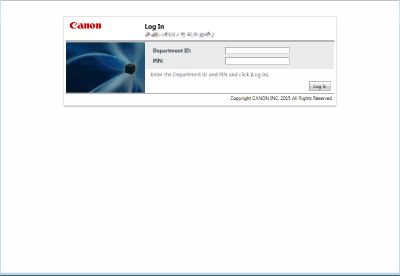
Logging in from the Remote UI
Enter the Department ID in [Department ID] and PIN in [PIN], and click [Log In].
|
NOTE
|
When Department ID Management is not implementedWhen only the System Manager ID and PIN are set without Department ID Management, the login methods differ between the system administrator and general users. For the system administrator, select [System Manager Mode] and enter [System Manager ID]/[System Manager PIN], and then click [Log In]. For general users, select [General User Mode] and enter PIN, and then click [Log In].
If you set <Allow> for <Access by General User>, you can select [General User Mode]. <License/Other>
<Remote UI> |
Implementing Function Restrictions and User Management
Configure the settings as necessary.
Checking page totals
<Management Settings> <User Management> <Department ID Management> <Page Totals> Check the page totalSetting the maximum number of pages for copy/print/scan
<Management Settings> <User Management> <Department ID Management> <Register PIN> Select Department ID <Edit> <Turn Limit On/Off and Set Page Limit> Press <On> for functions to restrict Enter the number of pages <OK> <OK> <OK> <OK> Setting Department ID Management on functions other than copy/print
<Management Settings> <User Management> <Department ID Management> <Register PIN> <Limit Functions> Press <On> for functions to set Department ID Management on <OK> <OK> <OK> Deleting Department IDs
<Management Settings> <User Management> <Department ID Management> <Register PIN> Select the Department ID <Delete> <Yes> <OK> <OK>Blocking Printer Jobs and Remote Scan Jobs When Department ID is Unknown
<Management Settings> <User Management> <Department ID Management> Set <Allow Printer Jobs with Unknown IDs> or <Allow Remote Scan Jobs with Unknown IDs> to <Off> <OK>