You can select whether to print on one side or both sides of each sheet of paper.
The default setting for [Print Style] is [2-sided printing].
|
Paper Type
|
Paper Size
|
|
Plain paper
(16.0 to 23.9 lb Bond (60 to 90 g/m²))
Heavy paper
(24.0 lb Bond to 44.4 lb Cover (91 to 120 g/m²))
|
A4, Legal, Letter
|
|
Before performing 2-sided printing, see "Attention (1-sided Printing and 2-sided Printing)."
|
|
IMPORTANT
|
||||
|
Do not touch the paper during 2-sided printing until it is completely output. The paper is first partially output after the front side is printed, and then it is fed again to be printed on the back side.
Be sure to close the output selection cover before performing 2-sided printing.
This printer enables you to perform 2-sided printing by manually inserting the back side of the paper* whose front side was previously printed even if the paper cannot be used for 2-sided printing.
When printing on the back side of paper whose front side was previously printed, flatten out any curled paper and load one sheet of paper at a time in the multi-purpose tray.
|
1.
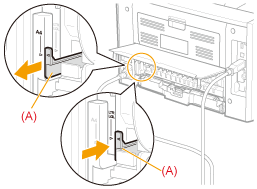
Set the paper size switch lever to the appropriate position according to the paper size for 2-sided printing.
 |
If the lever is not set to the appropriate position, this may result in paper being misfed or paper jams.
|
|
1. Open the duplex unit cover.
|
|||||
 |
 |
||||
|
2. Set the blue paper size switch lever (A) to the appropriate position.
|
|||||
|
|
 |
||||
|
3. Close the duplex unit cover.
|
|||||
2.
Click [Finishing].

For instructions on how to display the printer driver screen, see "Printing with the Printer Driver" or "Configuring the Print Settings Beforehand."
3.
Select [1-sided Printing] or [2-sided Printing] from [Print Style].

4.
Select the binding edge from [Binding Location].
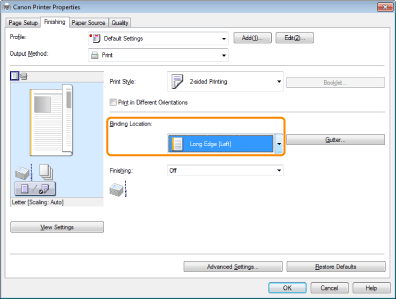
The output image is displayed in the preview area.
5.
Click [OK].
|
Note
|
|
The display may vary according to the operating system, as well as the type and version of the printer driver.
|