Copy > Adjusting the Color > Adjusting the Color Balance

*
Adjusting the Color Balance

Return to Overview


  1. Place your originals → press [Options] → [Color Balance].
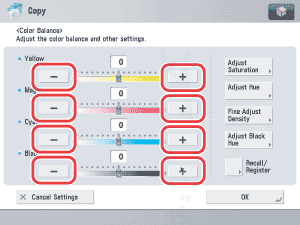
  1. Press [-] or [+] to adjust the strength of each color.

You can also press [Recall/Register] to recall and change the previously stored color balance settings. (See "Recalling Color Balance Settings")

  1. Specify Saturation, Hue, and Density.
  • If [Saturation] is selected:
  • If [Hue] is selected:
  • If [Density Fine Adjustment] is selected:
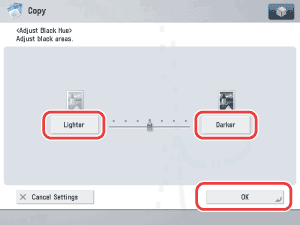
  • If [Adjust Black Hue] is selected:

  • If [Saturation] is selected:
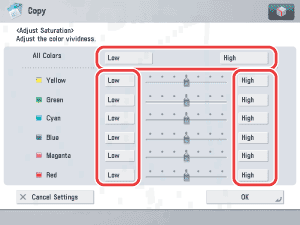
  • Press [Low] or [High] to adjust the saturation level of the selected color or all the colors → press [OK].


  • If [Hue] is selected:
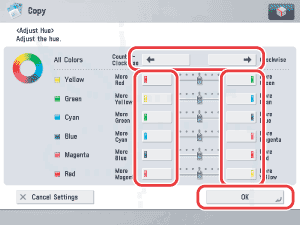
  • Adjust the hue level of the selected color or all the colors → press [OK].

To adjust the hue level of all the colors, press [Counter-Clockwise] or [Clockwise].

To adjust the hue level of each color, press [More Red], [More Green], [More Yellow], [More Cyan], [More Blue], or [More Magenta] for each color.


  • If [Density Fine Adjustment] is selected:
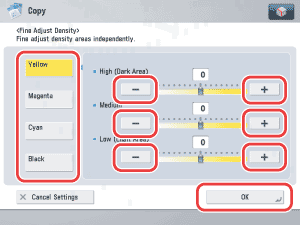
  • Select the color that you want to adjust → press [-] or [+] to adjust the density level for the darker (high), medium, and lighter (low) density areas → press [OK].


  • If [Adjust Black Hue] is selected:
  • Press [Lighter] or [Darker] to adjust the hue of the black color → press [OK].


  1. Press [OK].

  • Back To Top