Copy > Copy Set Numbering
*
Copy Set Numbering

This mode enables you to print page numbers, copy set numbers, and user-defined text onto the output.


Remark
  • For information on the modes which cannot be set in combination with this mode, see "Combination of Functions Chart."
  • Printing performance may not be optimal, depending on the original content and combination of settings.
  • If the copy number has fewer than five digits, the machine copies it as follows:
  • Example: If the copy number is 10, "00010" is printed.
  • If the Print & Check mode is used with the Copy Set Numbering mode, the number is copied as "XXXXX."
  • If the Copy Set Numbering mode is used with the Insert Sheets, page numbers are not printed on the inserted pages.

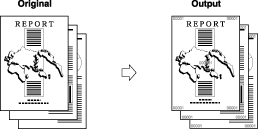
This mode enables you to copy or print a document with a five digit number in the background of each page.


  1. Place your originals → press [Options] → [Copy Set Numbering].
  1. Select the orientation and the position of the copy set numbers.
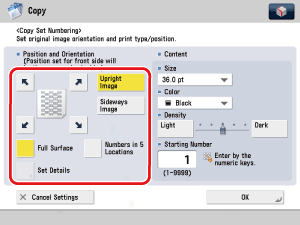
You can select one of the four paper corners ([], [], [], or []), [Full Surface], or [Numbers in 5 Locations] for the printing position. If you select one of the four corners, you can press [Set Details] to perform fine adjustment.

[], [], [], []: Prints on the top left, bottom left, top right, or bottom right.
[Full Surface]: Prints all over the paper.
[Numbers in 5 Locations]: Prints on all four corners and the center of the paper.
  • If [Copy Set Numbering Option Settings] is set to 'On', [Numbers in 5 Locations] is grayed out and cannot be selected. (See "Copy Set Numbering Options.")
  • If you set any two of the Page Numbering, Copy Set Numbering, Watermark, or Print Date modes to print in the same position, a message asking for your confirmation is displayed when you press (Start).
  • Press [Set Details].
  • Press [X] and [Y] → press [-] or [+] to set their respective positions.
  • Press [OK].

  1. Specify the print settings for the copy set numbers.
  • Select the size of the copy set numbers from the drop-down list.

Select the size of the copy set numbers from [12.0 pt], [24.0 pt], and [36.0 pt].

  • If [Copy Set Numbering Option Settings] is set to 'On', the available size of the copy set numbers becomes [10.5 pt], [12.0 pt], and [14.0 pt]. (See "Copy Set Numbering Options.")
  • Select the color of the copy set numbers from the drop-down list.

You can select [Black] for the color of the copy set numbers.

  • Adjust the character density by pressing [Light] or [Dark].
  • Enter the page number to start numbering using - (numeric keys).

Any number from 1 to 9,999 may be used.

  1. Press [OK].

  • Back To Top