Security > Copy Set Numbering Options
*
Copy Set Numbering Options

To "Settings/Registration Table"

You can specify the detailed settings of the Copy Set Numbering mode for both the Copying and
Mail Box functions. For instructions on using the Copy Set Numbering mode, see "Copy," and "Access Stored Files."


  1. Press (Settings/Registration) → [Function Settings] → [Common] → [Print Settings] → [Copy Set Numbering Option Settings].
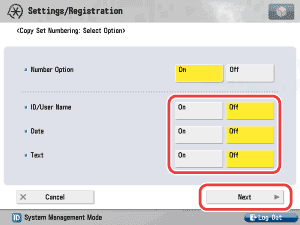
  1. Select [On] or [Off] for <Number Option>.

Details of each item are shown below.

[On]: [Full Surface] and [Numbers in 5 Locations] are grayed out, and cannot be selected on the Position and Orientation screen when you set the Copy Set Numbering mode. The font sizes of the copy set numbers are as follows: [Small]: 10.5 point, [Medium]: 12 point, [Large]: 14 point
[Off]: [Full Surface] and [Numbers in 5 Locations] can be selected on the Position and Orientation screen when you set the Copy Set Numbering mode. The font sizes of the copy set numbers are as follows: [Small]: 12 point, [Medium]: 24 point, [Large]: 36 point
  • If you select [On]:
  • If you select [Off]:

  • If you select [On]:
  • Select [On] or [Off] for each of the items → press [Next].

<ID/User Name>

[On]: The ID/user name is printed.
[Off]: The ID/user name is not printed.

<Date>

[On]: The date is printed.
[Off]: The date is not printed.

<Text>

[On]: User-defined text is printed.
[Off]: User-defined text is not printed.
  • If you select [On] for <Date>, select the date format → press [Next].
  • If you select [On] for <Text>, press [Enter] → enter the text to print → press [OK] → [Next].

If you have registered characters in [Register Characters for Page No./Watermark] in [Function Settings] (Settings/Registration), you can select the characters from the list.

  • Select the way you would like to align the selected or entered characters on the page → press [OK].

  • If you select [Off]:
  • Press [OK].

  • Back To Top





