
Cleaning the Pressure Roller for Fixing
If there are streaks on printouts, it is possible that the pressure roller for fixing is stained. By passing cleaning paper through the machine, you can clean the pressure roller for fixing.
|
|
Paper that can be used for cleaningSize: LTR
Type: Thin, Plain, Color, or Recycled
|
1
Press 
 <Adjustment/Maintenance> <Maintenance> <Clean Pressure Roller for Fixing>.
<Adjustment/Maintenance> <Maintenance> <Clean Pressure Roller for Fixing>.2
Select the paper source where paper to use for cleaning is loaded, and press <OK>.
3
Press <Start Printing>.
A sheet of paper to use for cleaning is output.
4
Place the paper sheet output in step 3 in the multi-purpose tray. Loading Paper in the Multi-Purpose Tray
Insert the paper sheet the printed side face up, in the direction of the printed arrow.
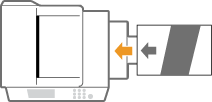
Set the paper size and type to match those of the paper sheet to use for cleaning. Specifying Paper Size and Type in the Multi-purpose Tray
5
Press <Start Cleaning>.
It takes about 30 seconds to clean the pressure roller for fixing. Once you start the cleaning, you cannot stop the process half way.
If a paper jam occurs during the cleaning process, the Error indicator blinks. Remove the jammed paper and try again from scratch.