Access Stored Files > Booklet Mode
*
Booklet Mode

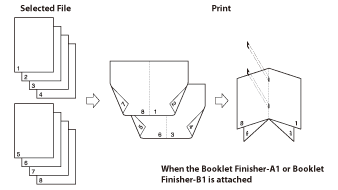
This mode enables you to print one-sided or two-sided files in such a way that the prints are made into a booklet.

For the Booklet Scanning mode of the Mail Box function, see [Booklet Scanning] in "Scan and Store."

  • Saddle Stitch Booklet

This mode enables you to print documents in such a way that the prints are made into a booklet.

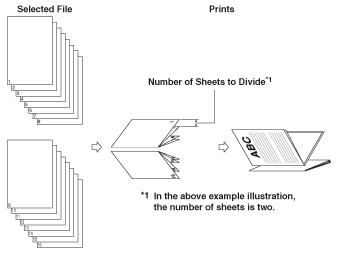
  • Divided Booklet

This mode enables you to make a multiple page document with a large number of pages into a divided booklet.

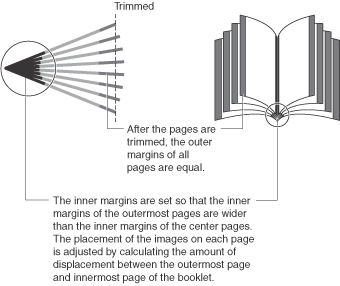
  • Creep (Displacement) Correction

This mode enables you to adjust the position of the images in a booklet by calculating the width of the displacement between the outermost page and center page of the booklet.

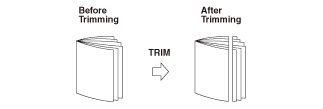
  • Trim Mode

Trims the edges of prints when using the Saddle Stitch.


Remark
  • For information on the modes which cannot be set in combination with this mode, see "Combination of Functions Chart."
  • This mode can be used only for printing a file stored in a mail box or a PDF file.
  • In the Saddle Stitch mode, make sure to place originals with a vertical (portrait) orientation vertically. If these originals are placed horizontally, the even numbered pages will be printed upside down.
  • In the Saddle Stitch mode, saddle stitching is not performed if there is only one output sheet.
  • In the Saddle Stitch mode, saddle stitching can be performed only if the Booklet Finisher-A1 or Booklet Finisher-B1 is attached.
  • You can set [Trim] only if you select [Fold + Saddle Stitch].
  • The accuracy of folds created in the Saddle Stitch mode may vary, depending on the type and quantity of paper.
  • When printing on special types of paper, such as heavy paper or transparencies, be sure to correctly set the paper type, especially if you are using heavy paper. If the type of paper is not set correctly, it could adversely affect the quality of the image. Moreover, the fixing unit may become dirty, or the paper could jam, and a service repair may be needed.
  • The Booklet Scan in Booklet mode can only be specified for the following paper sizes: LTR, LTRR, STMT, or STMTR.
  • The Booklet mode cannot be set if multiple files are selected, and their record sizes are different.
  • The Finishing modes cannot be set for paper less than 16 lb bond (60 g/m2). Do not select the Finishing modes.
  • If you want to print files for use as a booklet, we recommend that you scan the originals using the Booklet Scanning mode. (See [Booklet Scanning] in "Scan and Store.")
  • As an example, the procedure to select and print a file stored in a mail box is explained in this section.

  1. Select the desired Mail Box.
  1. Select the file that you want to print → press [Print] → [Change Print Settings] → [Options].
  1. Press [Booklet].
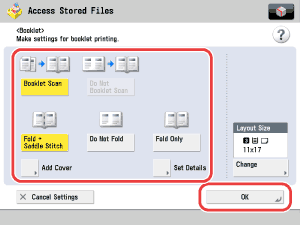
  1. Specify the booklet print settings.

  • Select whether to arrange the page layout of scanned data to make a saddle stitched booklet.

Details of each item are shown below.

[Booklet Scan]: Select to use each page of the image as one page of the booklet.
[Do Not Booklet Scan]: Select to fold each page of the image to use as two pages of the booklet.

If [Advanced Box], [Network], or [Memory Media] is selected in step 1, [Booklet Scan] in Booklet mode is set in the Booklet Print settings.

  • If the booklet finisher is attached, select [Fold + Saddle Stitch], [Do Not Fold], or [Fold Only] and specify whether to fold and saddle stitch.
  • [Fold Only] is displayed if the Booklet Finisher-A1 or Booklet Finisher-B1 is attached.
  • Press [Change] → select the paper source that contains the paper you want to use for the main document → press [OK].

If you selected the paper to use for the main document from [Change MP Tray Paper], select the paper size → press [Next] → select the paper type → press [OK].

  • If you want to add a cover, press [Add Cover] → select whether to print on the cover.

If you want to use the Booklet Scan mode, select [Print] or [Do Not Print] for <Front Cover>, <Front Inside Cover>, <Back Inside Cover>, and <Back Cover> → press [OK].

If you do not want to use the Booklet Scan mode, select [Print] or [Do Not Print] → press [OK].

If you are feeding cover paper from the Document Insertion Unit-H1, Document Insertion Unit-J1, or Document Insertion / Folding Unit-G1, select [Leave Blank].

Press [Change] → select the drawer that contains the paper you want to use for the cover → press [OK].

If you selected the paper to use for the cover from [Change MP Tray Paper], select the paper size → press [Next] → select the paper type → press [OK].

  • The paper used for the cover page must be the same size as that which is used for the main document.
  • If you are loading preprinted paper to use as the cover page into the document insertion unit, you must load the paper face up.
  • Only 16 lb bond to 80 lb cover (60 to 220 g/m2) paper can be used for the main document. (for the Booklet Finisher-A1)
  • Only 17 lb bond to 80 lb cover (64 to 220 g/m2) paper can be used for the main document. (for the Booklet Finisher-B1)
  • Up to 110 lb cover (300 g/m2) paper can be used for the cover paper. (for the Booklet Finisher-A1)
  • Up to 140 lb index (256 g/m2) paper can be used for the cover paper. (for the Booklet Finisher-B1)
  • If you are using Heavy 3 or Heavy 4 paper for the cover sheets, you can only print on the outside of the front cover or outside of the back cover.
  1. Specify other Booklet settings.

If you are not specifying other Booklet settings, proceed to step 6.

  • If the Booklet Finisher-A1 or Booklet Finisher-B1 is attached:
  • If the Booklet Finisher-A1 or Booklet Finisher-B1 is not attached:

  • If the Booklet Finisher-A1 or Booklet Finisher-B1 is attached:
  • If you select [Divided Booklet], enter the number of sheets that you want to divide by pressing [-] or [+] → press [OK]. You can also use the numeric keys to enter values.
  • The maximum number of sheets that can be saddle stitched is as follows:
  • Booklet Finisher-A1: 20 sheets
  • Booklet Finisher-B1: 16 sheets
  • If the number of sheets is 21 or more for the Booklet Finisher-A1 or 17 or more for the Booklet Finisher-B1, the booklet is not saddle stitched.
  • The number of saddle stitched booklets that the booklet tray can hold depends on the number of sheets that each booklet contains.

Booklet Finisher-A1:

  • 1 to 5 sheets: 25 sets
  • 6 to 10 sheets: 15 sets
  • 11 to 16 sheets: 10 sets
  • 17 to 20 sheets: 5 sets

Booklet Finisher-B1:

  • 1 to 5 sheets: 25 sets
  • 6 to 10 sheets: 15 sets
  • 11 to 16 sheets: 10 sets
  • If you select [Fold Only], a maximum of five sheets can be folded at a time for the Booklet Finisher-A1, and only one sheet can be folded at a time for the Booklet Finisher-B1.
  • If the printing position of the image is out of place, and you want to set the creep (displacement) correction, press [Creep Correction] → select [Auto] or [Manual] → press [OK].

If you select [Manual], press [] or [] to adjust the correction width.

  • If you want the edges of the booklet trimmed, press [Trim].
  • You can set [Trim] only if the Booklet Finisher-A1 is attached and you select [Fold + Saddle Stitch].
  • If you want to adjust the trim width, press [Adjust Trim Width] → adjust the trim width → press [OK].
  • The trim width can be adjusted only if the Booklet Finisher-A1 is attached.
  • If you want to change the position of the saddle stitch, press [Change Stitching Position] → change the position of the saddle stitch → press [OK].
  • You can set [Change Stitching Position] only if you select [Fold + Saddle Stitch].
  • If you want to adjust the folding position, press [Adjust Fold Position] → adjust the folding position → press [OK].
  • You can set [Adjust Fold Position] only if you select [Fold Only].

  • If the Booklet Finisher-A1 or Booklet Finisher-B1 is not attached:
  • If the printing position of the image is out of place, and you want to set the creep (displacement) correction, press [Creep Correction] → select [Auto] or [Manual] → press [OK].

If you select [Manual], press [] or [] to adjust the correction width.


  1. Press [OK].
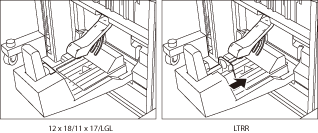
  1. Set the Booklet Tray guide to match the paper size.

  • Make sure to set the Booklet Tray guide correctly to match the paper size. Setting the Booklet Tray guide incorrectly may result in a paper jam.
  • This step is necessary only if the Booklet Finisher-B1 is attached.

  • Back To Top