 |
|
|
IMPORTANT
|
|
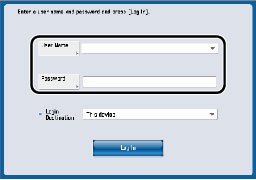
To log in to the device, a login service must be set. For more information on setting a login service, see the manual accompanying your device.
The job management function can only be used on Canon devices with a touch panel display.
|
|
NOTE
|
|
The screen that is displayed may differ depending on the model of the machine.
|
|
IMPORTANT
|
|
After logging in, you must be using Canon Business Imaging Online to use the functions of Print Services Client. PullPrint Service Provider and Access Token Provider must also be started.
|
|
NOTE
|
|
The procedure uses the SSO-H login service as an example. To use another login service, see the manual accompanying your device.
You cannot log in to the device while it is performing Auto Batch Printing.
Link a device login user with a Canon Business Imaging Online user account using the user approval function of Access Token Provider. For more information, see the Access Token Provider User's Guide.
|
|
NOTE
|
|
You can log out at any time while logged in.
Print Services Client logs out from the device when Auto Reset is performed or the device enters the Energy Saver mode.
|


|
1
|
Login user name
|
Displays the name of the logged in user.
|
|
2
|
[Limitations]
|
Press to display the limitations dialog.
If the device is not operating in AMS mode, [Limitations] is not displayed. For information on AMS, see "AMS Limitations" |
|
3
|
[Select All/Clear Selection]
|
Either [Select All] or [Clear Selection] is displayed according to whether or not jobs are selected. If no jobs are selected, [Select All] is displayed, and if one or more jobs are selected, [Clear Selection] is displayed.
Press [Select All] to select the first 20 jobs in the job list. However, jobs that cannot be displayed and jobs that cannot be printed due to AMS access restrictions are not selected. Press [Clear Selection] to deselect all selected jobs. |
|
4
|
Selected/Maximum Number of
Selectable Jobs |
"Selected" displays the number of currently selected stored jobs.
"Maximum Number of Selected Jobs" displays the maximum number of jobs that can be selected. However, if the number of stored jobs displayed in the job list is less than the maximum number of selectable jobs, the number of stored jobs in the list is displayed. The maximum number of selectable jobs is 20. |
|
5
|
[Refine Jobs]
|
Press to display the dialog for setting the conditions to refine the stored jobs.
|
|
6
|
[
 ][ ][ ] ] |
Press [
] to retrieve data for the previous page and update the job list. Press [] to retrieve data for the next page and update the job list.Each button is enabled only if there is a previous or next page, respectively.
|
|
7
|
Job No./Total Job No.
|
Job No. displays the ordinal numbers for the first and last jobs displayed in the job list, connected with a hyphen ("-").
Total Job No. displays the total number of jobs that were retrieved with the set refining conditions from the jobs stored in the database. |
|
8
|
Pages/Copies
|
Displays the number of pages and copies for each job.
This item may not be displayed, depending on the device model. |
|
9
|
Print Set.
|
Displays the print attributes (Print Style and N on 1) for each job as icons. This item may not be displayed, depending on the device model.
For information on the icons, see "Changing Print Settings and Printing"
|
|
10
|
Stored Jobs list
|
Displays a list of the stored jobs.
A check mark is displayed in the check box to the left of a selected job.
|
|
11
|
[
 ] ] |
Updates the Stored Jobs list.
|
|
12
|
[
 ][ ][ ] ] |
Press to scroll the Stored Jobs list by the number of jobs displayed on the screen.
These buttons can be used only when the number of jobs exceeds the number of jobs displayed on the screen.
|
|
13
|
[Other Operation]
|
Press to display or hide the balloon panel. [Delete], [Details], and [Cancel Printing] are displayed in the balloon panel.
|
|
14
|
[Chng Set. & Prnt]
|
Press to display the print settings dialog.
This button can be used when only one job is selected. The button is disabled if no job is selected or if more than one job is selected. |
|
15
|
[Print]
|
Press to print the selected stored job(s).
This button can be used only when one or more jobs are selected. The button is disabled if no job is selected or if a job that cannot be printed due to AMS access restrictions is selected.
For information on AMS, see "AMS Limitations" |
|
16
|
[Delete]
|
Press to delete the selected stored job(s).
This button can be used only when one or more jobs are selected. The button is disabled if no job is selected.
|
|
17
|
[Details]
|
Press to display the details dialog for the selected stored job.
This button can be used when only one job is selected. The button is disabled if no job is selected or multiple jobs are selected.
|
|
18
|
[Cancel Printing]
|
Press to cancel printing of the selected stored job(s).
This button can be used only when one or more jobs are selected. The button is disabled if no job is selected. |
