Editing the Registered Destinations in the Address Book
0YRY-039 1100-039 10XJ-039 1106-039 10YY-039 10H3-039 10H4-039 108A-039 1116-039
After registering destinations, you can change or delete their settings.
1
Press <Dest./Fwd. Settings> on the Main Menu  <Register Destinations>.
<Register Destinations>.2
Select the destination you want to edit.
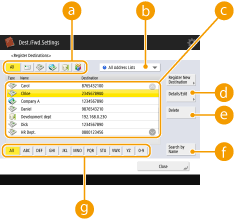
 Destination type button
Select  (e-mail),
  (fax),
  (I-fax),
  (file), or
  (group) to filter the destinations displayed in the address list (
 ). Press <All> to display all registered destinations.
(e-mail), (fax), (I-fax), (file), or (group) to filter the destinations displayed in the address list (). Press <All> to display all registered destinations. Address list drop-down list
Select <Personal Address List>, <Address List 1> to <Address List 10> or <Address List for Admin.> to filter the destinations to be displayed in the address list.
Destination listSelect the destination you want to edit or delete.
 <Details/Edit>
Press to check or edit the settings of destinations.
 <Delete>
Press to delete the destination.
 <Search by Name>
Enter the destination name. Press <Search by Name> again to return to the previous screen.
 First letter button
Select the alphanumeric button for the first character of the destination name. Press <All> to display all registered destinations.

When destinations are managed by access numbers, enter the access number (Restricting Access to Destinations Registered in the Address Book) after pressing <Access No.>.
3
Press <Details/Edit>.
If you want to delete a destination, select the destination and press <Delete> <Yes>.
<Yes>.4
Edit the settings of the destination.
For details about how to edit the settings, see Registering Destinations in the Address Book.
5
Press <OK> <Close>.
<Close>.