Problem Solving > Clearing Paper Jams > Professional Puncher Integration Unit-B1 (Optional)

*
Professional Puncher Integration Unit-B1 (Optional)

Return to Overview


If a paper jam occurs inside the Professional Puncher Integration Unit-B1, a screen prompting you to remove the jammed paper appears on the touch panel display. Check the location of the paper jam, and follow the procedure described below, and the procedure that appears on the touch panel display, to remove the jammed paper.


Remark
  • When removing jammed originals or paper, take care not to cut your hands on the edges of the originals or paper.
  • When removing jammed originals or paper, take care not to cut your hands on the inside of the machine. If you cannot remove the paper, contact your local authorized Canon dealer.
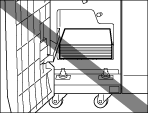
  • Do not place objects in the open space inside the Professional Puncher Integration Unit-B1, as this may cause the machine to malfunction.


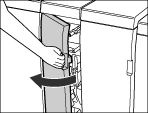
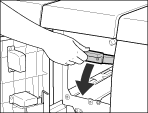
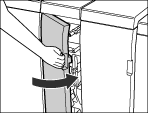
  1. Open the front cover of the professional puncher integration unit.

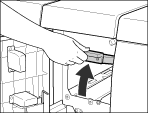
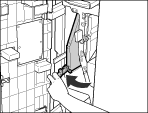
  1. Lift up the guide (A) until it clicks into place.

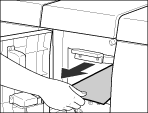
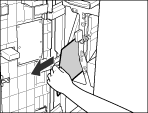
  1. Remove any jammed paper.

  1. Close the guide (A) until it clicks into place.

  • When closing the guide, be careful not to get your fingers caught, as this may result in personal injury.
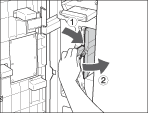
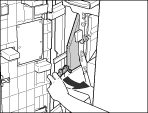
  1. Turn the lever of the guide (B1) to the right, as shown below, and then open the guide (B1) until it clicks into place.

  1. Remove any jammed paper.

  1. Turn the lever of the guide (B1) to the left until it clicks into place.

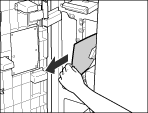
  1. Open the guide (B2) until it clicks into place.

  1. Remove any jammed paper.

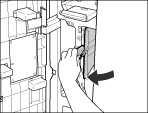
  1. Close the guide (B2) until it clicks into place.

  • When closing the guide, be careful not to get your fingers caught, as this may result in personal injury.
  1. Close the front cover of the professional puncher integration unit.

  • When closing the front cover of the professional puncher integration unit, be careful not to get your fingers caught, as this may result in personal injury.
  1. Follow the instructions on the touch panel display.
  • The screen indicating the location of the paper jam repeatedly appears on the touch panel display until the paper jam is entirely cleared. For more information, See"Screens Indicating the Locations of Paper Jams."

  • Back To Top