Problem Solving > Clearing Paper Jams > Inside of the Staple Finisher-A1/Booklet Finisher-A1 (Optional)
*
Inside of the Staple Finisher-A1/Booklet Finisher-A1 (Optional)

Return to Overview


If a paper jam occurs inside of the Staple Finisher-A1 or Booklet Finisher-A1, a screen prompting you to remove the jammed paper appears on the touch panel display. Check the location of the paper jam, and follow the procedure described below, and the procedure that appears on the touch panel display, to remove the jammed paper.


Remark
  • There are some areas inside the machine which are subject to high-voltages. When removing jammed paper or when inspecting the inside of the machine, do not allow necklaces, bracelets, or other metal objects to touch the inside of the machine, as this may result in burns or electrical shock.
  • When removing jammed paper, take care not to cut your hands on the edges of the paper.
  • When removing paper which has become jammed inside the machine, take care not to cut your hands or injure yourself on the inside of the machine. If you cannot remove the paper, contact your local authorized Canon dealer.
  • When removing paper which has become jammed inside the machine, take care not to allow the toner on the jammed paper to come into contact with your hands or clothing, as this will dirty your hands or clothing. If they become dirty, wash them immediately with cold water. Washing them with warm water will set the toner, and make it impossible to remove the toner stains.
  • When removing paper which has become jammed inside the machine, remove the jammed paper gently to prevent the toner on the paper from scattering and getting into your eyes or mouth. If the toner gets into your eyes or mouth, wash them immediately with cold water and immediately consult a physician.
  • Take care when handling the optional equipment that is attached to the machine. When an optional unit's cover is opened to replace a staple cartridge, discard the punch waste, discard the trim waste, or clear paper or staple jams, prints may still be output if other optional units are operating normally, and are not involved in the paper or staple jam removal procedure.

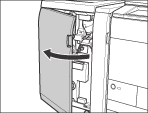
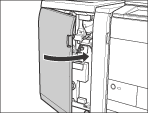
  1. Open the front cover of the finisher.

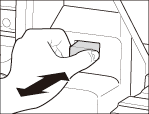
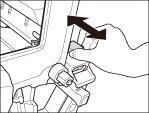
  1. Slide the guide (F-A1) to align it with the mark.


If the Booklet Finisher-A1 is attached


If the Staple Finisher-A1 is attached

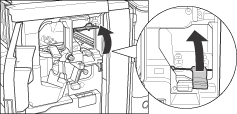
This procedure is necessary only if the Puncher Unit-BF1 is attached.

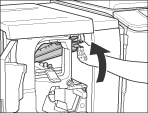
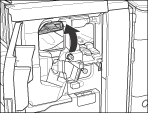
  1. Open the guide (F-B1) .

If you are using the Staple Finisher-A1, open the entrance guide.

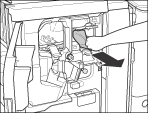
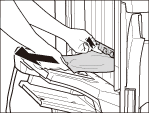
  1. Remove any jammed paper.

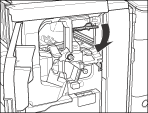
  1. Close the guide (F-B1) .

If you are using the Staple Finisher-A1, close the entrance guide.

  • When closing the guide, be careful not to get your fingers caught, as this may result in personal injury.
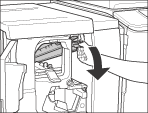
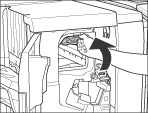
  1. Open the guide ( F-B2 ).

If you are using the Staple Finisher-A1, open the guide (F-B1).

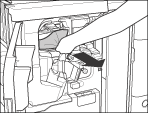
  1. Remove any jammed paper.

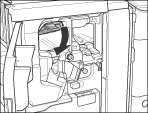
  1. Close the guide (F-B2) .

If you are using the Staple Finisher-A1, close the guide (F-B1).

  • When closing the guide, be careful not to get your fingers caught, as this may result in personal injury.
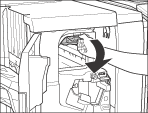
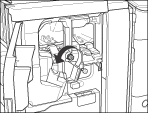
  1. Turn the lower dial (F-B3) in the direction of the arrow (counterclockwise).

If you are using the Staple Finisher-A1, turn the dial (F-B2).

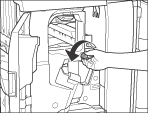
  1. Open the guide (F-B4), and remove any jammed paper.

If you are using the Staple Finisher-A1, open the guide (F-B3), and remove any jammed paper.

  1. Close the guide (F-B4) .

If you are using the Staple Finisher-A1, close the guide (F-B3).

  • When closing the guide, be careful not to get your fingers caught, as this may result in personal injury.
  1. Close the front cover of the finisher.

  • When closing the front cover of the finisher, be careful not to get your fingers caught, as this may result in personal injury.
  1. Follow the instructions on the touch panel display.
  • The screen indicating the location of the paper jam is displayed on the touch panel display until the paper jam is entirely cleared. For more information, see "Screens Indicating the Locations of Paper Jams."

  • Back To Top