Problem Solving > Clearing Paper Jams > Paper Decks of the Multi-drawer Paper Deck-A1 (Optional)

*
Paper Decks of the Multi-drawer Paper Deck-A1 (Optional)

Return to Overview


If a paper jam occurs in the Multi-drawer Paper Deck-A1, a screen prompting you to remove the jammed paper appears on the touch panel display. Check the location of the paper jam, and follow the procedure described below, and the procedure that appears on the touch panel display, to remove the jammed paper.


Remark
  • When removing jammed originals or paper, take care not to cut your hands on the edges of the originals or paper.
  • When removing jammed originals or paper, take care not to cut your hands on the inside of the machine. If you cannot remove the paper, contact your local authorized Canon dealer.

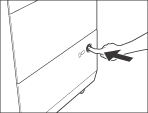
  1. Push the open button of the paper deck indicated on the touch panel display.

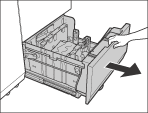
  1. Grip the handle, and pull out the paper deck until it stops.

  • Do not pull out the paper deck by force.
  • If the machine is in the Sleep mode (the touch panel is not displayed, and only the main power indicator is lit), you may not be able to open the paper deck. In this case, press the control panel power switch to reactivate the machine, and then press the open button on the paper deck.
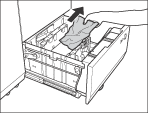
  1. Remove any jammed paper.

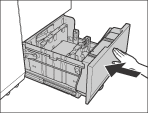
  1. Gently push the paper deck back into the machine until it clicks into place in the closed position.

  • When returning the paper deck to its original position, be careful not to get your fingers caught, as this may result in personal injury.
  1. Follow the instructions on the touch panel display.
  • The screen indicating the location of the paper jam repeatedly appears on the touch panel display until the paper jam is entirely cleared. For more information, See"Screens Indicating the Locations of Paper Jams."

  • Back To Top