Problem Solving > Clearing Paper Jams > Main Unit (Fixing Transport Unit)

*
Main Unit (Fixing Transport Unit)

Return to Overview


If a paper jam occurs in the main unit area, a screen prompting you to remove the jammed paper appears on the touch panel display. Check the location of the paper jam, and follow the procedure described below, and the procedure that appears on the touch panel display, to remove the jammed paper.


Remark
  • There are some areas inside the machine which are subject to high-voltages. When removing jammed paper or when inspecting the inside of the machine, do not allow necklaces, bracelets, or other metal objects to touch the inside of the machine, as this may result in burns or electrical shock.

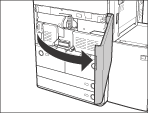
  1. Open the front cover of the main unit.

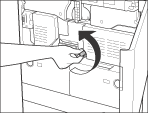
  1. Turn the dial 15 times.

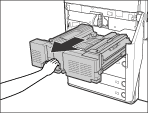
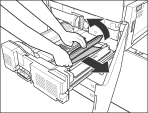
  1. Grip the green lever, and pull out the fixing transport unit.

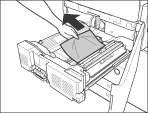
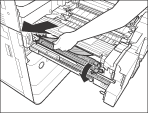
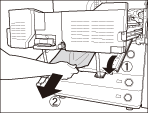
  1. Remove any jammed paper.

  1. Open the edge guide and remove any jammed paper.

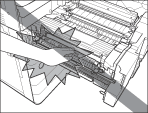
  1. Open the inner output guide and remove any jammed paper.

  • The fixing unit and its surroundings are subject to high-temperatures. When removing jammed paper, take care not to touch anything in this area.

  • The inner output guide and its surroundings are subject to high-temperatures. When removing jammed paper, take care not to touch anything in this area.
  1. Close the inner output guide.

  • When closing the guide, be careful not to get your fingers caught, as this may result in personal injury.
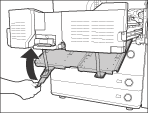
  1. Open the 2-sided guide, and remove any jammed paper.

  1. Close the 2-sided guide.

  • When closing the guide of the fixing transport unit, be careful not to get your fingers caught, as this may result in personal injury.
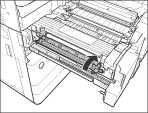
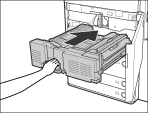
  1. Gently push the fixing transport unit back into its original position.

  • When returning the fixing transport unit to its original position, be careful not to get your fingers caught, as this may result in personal injury.
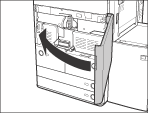
  1. Gently close the front cover of the main unit.

  • When closing the front cover of the main unit, be careful not to get your fingers caught, as this may result in personal injury.
  1. Follow the instructions on the touch panel display.
  • The screen indicating the location of the paper jam repeatedly appears on the touch panel display until the paper jam is entirely cleared. For more information, See"Screens Indicating the Locations of Paper Jams."

  • Back To Top