




Remote UI > Before You Start the Remote UI > Enabling the Remote UI

*
Enabling the Remote UI

Return to Overview


You must use the machine's control panel to enable the Remote UI.


Remark
  • By setting [Remote UI] to 'On', you can open a necessary port. However, it is recommended that it is set to 'Off', if a port is not used. If you leave the port open, an unauthorized user may access the machine.
  • For information on the flow of operations on the Settings/Registration screen using the touch panel display, see "Settings/Registration."

  1. Press (Settings/Registration) → [Management Settings] → [License/Other] → [Remote UI].
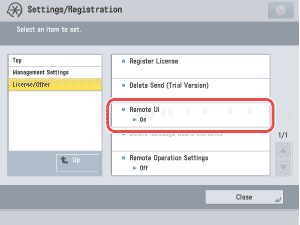
To move up, press [Up].

  1. Select [On] or [OFF].

Select [Off] to disable the Remote UI.

<Use SSL>:

[On]: Allows secured transmission using SSL.
[OFF]: Prohibits secured transmission using SSL.

<Use Reference Print >:

[On]: Allows printing by entering its URL.
[OFF]: Prohibits printing by entering its URL.
  • Any changes made to <Use SSL> are also applied to [Use SSL] in [License/Other] in [Management Settings] (Settings/Registration).
  1. Press [OK] → [Close].
  1. Turn OFF the main power of the machine, and then turn ON the main power again.
  • The [Remote UI] setting is made effective only after turning the machine's main power OFF, and then ON.
  • For information on how to turn ON and OFF the main power of the machine, see "Before You Start Using This Machine."

  • Back To Top