Print > Setting the Machine (PS/PCL/UFR II Printer) > Printing Directly from the Remote UI > Printing PDF Files Directly
*
Printing PDF Files Directly

Return to Overview


Follow the steps below for Direct Printing of a PDF file from the Remote UI.


Remark
  • This PDF File menu is only available for the PS Printer or PDF Direct Print Printer.

  1. Start your web browser → enter the appropriate URL into [Address] or [Location].

http://<the IP address of the device>/

  • If you do not know the appropriate URL, consult your system administrator.
  • When the printer's host name is registered on the DNS server, you can enter it in place of the IP address in [Host Name/Domain Name].
    Example : http://my_printer.xy_dept.company.com
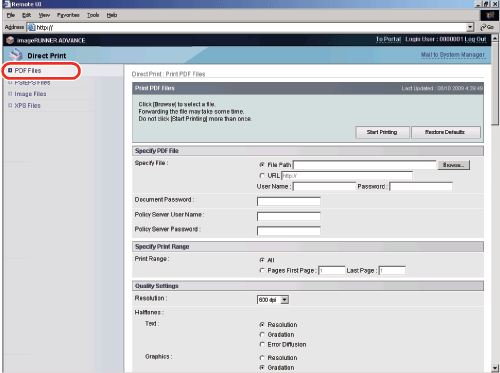
  1. Click [Direct Print] → select [PDF File] from the menu that appears under [Direct Print].

If Department ID Management is set, a dialog box prompting you to enter the Department ID and password appears. Enter the Department ID and password → click [OK].

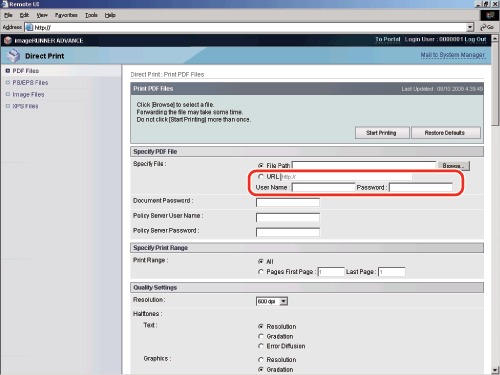
  1. Specify the location of the PDF file that you want to print.
  • To Specify the [File Path]
  • To Specify the [URL]

  • To Specify the [File Path]
  • Click [Browse] → click [Open] after selecting the file.


  • To Specify the [URL]
  • Enter the URL of the PDF file you want to print.

* For URLs that need user certification, enter the [Policy Server User Name] and [Policy Server Password].

  • If you specify a PDF file by entering its URL, the next print job cannot be processed until the PDF file is downloaded or until the browser disconnects from the web server.
  • Only HTTP protocol is supported when you print a PDF file by entering its URL.
  1. Enter the password in [Document Password] to open PDF files that have a password (user password) specified.

  • If you want to print a PDF file that is not allowed to be printed or if you want to print a PDF file in error diffusion that is only allowed to be printed in low resolution, enter the master password of the PDF file. If you try to print without entering the password, the error message <PDL PDF Data Decode Err> is displayed and printing is canceled.
  1. Specify the settings for [Specify Print Range].

Select [All] to print every page.

If you want to specify the pages to print by the page number, click [Pages] → enter the page numbers. Only the setting for the item whose radio button is selected will be effective.

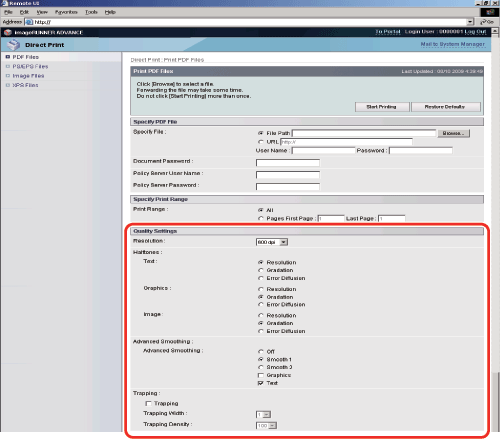
  1. Specify the settings under [Quality Settings] according to your preference.

Details of each menu are shown below.

[Resolution] This setting specifies the resolution for printing.
Resolution is expressed in units of dpi (dots per inch), indicating the number of dots in one inch. The higher the value, the greater the resolution, allowing finer expression of detail.
  • If [600 dpi] is selected, you can perform printing suited to general documents and tables.
  • If [1200 dpi] is selected, characters and lines can be finely printed.
[Halftones] This setting specifies how to express halftones in black and white data.
Print data is expressed in dots. Fine gradations, edges, and shades are expressed by using dither patterns, which are groups of dots. This is called halftone processing.
  • If [Gradation] is selected, you can print with both smooth gradation and outlines, which is best to print graphs and graphics that use gradation.
  • If [Resolution] is selected, you can print text with distinct outlines, which is best to print text and thin lines.
  • If [Error Diffusion] is selected, finer printing can be done than with [Resolution], although toner stability is somewhat weaker. This is suited to printing small characters and fine lines, and outlines (such as from CAD data) sharply.
[Advanced Smoothing] This setting smoothes jagged outlines of graphics (illustrations created by application software) and characters.
  • [Smooth 2] performs a higher level of smoothing than [Smooth 1]. If [Smooth 1] is selected and the results are still not printed smoothly, select [Smooth 2].
  • By switching the on/off for 'Graphics' and 'Text', you can select whether to apply smoothing to graphics or text data.
  • This setting allows you to apply smoothing to graphics data and text data. Smoothing is not applied to image data.
  • The setting for 'Text' is invalid if 'Resolution' is set to [1200 dpi].
  • "Graphics" and "Text" can only be selected when [Smooth 1] or [Smooth 2] is selected for Advanced Smoothing.
  • Settings for "Graphics" and "Text" on the touch panel display will be effective only if 'Printer Default' is set for Advanced Smoothing in the printer driver.
  • The results of Advanced Smoothing may differ depending on the characters and graphics patterns.
[Trapping] You can prevent image deterioration caused by misaligned images by creating overlaps between the emphasized image and the color plate that surrounds the image.

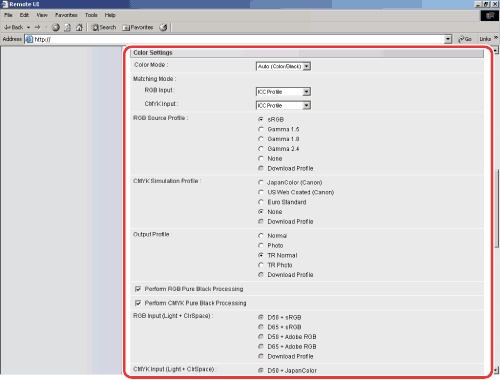
  1. Specify the settings under [Color Settings] according to your preference.

Details of each menu are shown below.

[Color Mode] This setting enables you to set the color mode you want to specify when printing.
  • If [Auto-Color Select] or [Full Color] is selected, the machine automatically detects whether the page is reproduced using black (K) only or all four colors: cyan (C), magenta (M), yellow (Y), and black (K).
  • If [Black] is selected, data is printed in black (K) only, even if the original is in color.
[Matching Mode] This setting enables you to set the type of color matching method to apply for each text, graphics, and image that make the print job, or for each color space, such as RGB and CMYK.
  • If [ICC Profile] is selected, you can select the matching method to compensate the difference between the color spaces used for the input profile (applied to the color space used for input data) and the output profile (defines device dependent color space).
  • If [Kyuanos] is selected, you can select the type of the ambient light used on the printed documents in the space displayed on the monitor that matches the printed document.
[RGB Source Profile] This setting allows you to specify the RGB profile (color data represented using the RGB (Red Green Blue) color model) that is appropriate for the characteristics of your monitor. This setting is applied when printing a document containing color images or graphics made by the RGB color model.
  • [sRGB]
    This setting specifies the industry standard definition for generic Windows computer monitors. If you are using an sRGB compatible monitor, you can print out colors close to how they appear on your monitor.
  • [Gamma 1.5, Gamma 1.8, and Gamma 2.4]
    These settings enable you to select the gamma correct level of the RGB data. The higher the value, the darker the printout.
  • [None]
    When this setting is selected, device dependent RGB data is converted into CMYK without applying the RGB profile.
  • [Download Profile]
    This setting specifies the profiles you have downloaded from the host computer to this machine using imageWARE Enterprise Management Console. You can store up to 100 profiles.
[CMYK Simulation Profile] This setting allows you to specify the simulation target to print the CMYK (Cyan Magenta Yellow blacK) data. The machine converts CMYK data into a device dependent CMYK color model based on the simulation target selected in the CMYK Simulation Profile.
  • [JapanColor(Canon)]
    This setting uses the JapanColor profile. This is for obtaining a printout closely matching the printing standard in Japan.
  • [US Web Coated(Canon)]
    This setting uses the U.S. Web Coated profile. This is for obtaining a printout closely matching the printing standard in the USA.
  • [Euro Standard]
    This setting uses the Euro Standard profile. This is for obtaining a printout closely matching the printing standard in Europe.
  • [None]
    When this setting is selected, device dependent CMYK data is printed as is without applying the CMYK profile.
  • [Download Profile]
    This setting uses custom simulation target that you have downloaded from the host computer to this machine using imageWARE Enterprise Management Console. You can store up to 100 profiles.
[Output Profile] This setting allows you to define the profile that is appropriate for the data you are going to print. It is applied to all data in the print job, so make sure the selected profile is right for your job.
  • [Normal]
    This setting prints the colors closely matching the ones displayed on your monitor.
  • [Photo]
    This setting prints colors close to photographic prints.
  • [Download Profile]
    This setting uses custom simulation target that you have downloaded from the host computer to this machine using imageWARE Enterprise Management Console. You can store up to 100 profiles.
[Perform RGB Pure Black Process] This setting enables you to specify how black and gray data with the equivalent ratio of R to G to B should be processed when device dependent RGB data is converted into device dependent CMYK data using the 'RGB Source Profile' of the machine.
[Perform CMYK Pure Black Process] This setting enables you to specify how monochrome data (C=M=Y=0) should be printed when the device dependent CMYK data is processed using the 'CMYK Simulation Profile' of the machine.
[RGB Input (Light+ClrSpace)] This setting enables you to specify the RGB Input Device Link Profile settings, and then print.
  • If [D50+sRGB] is selected, color matching is performed to match the conditions of ambient light D50 (5,000 K) on an sRGB compatible monitor.
  • If [D65+sRGB] is selected, color matching is performed to match the conditions of ambient light D65 (6,500K) on an sRGB compatible monitor.
  • If [D50+Adobe RGB] is selected, color matching is performed to match the conditions of ambient light D50 (5,000 K) on an Adobe RGB compatible monitor.
  • If [D65+Adobe RGB] is selected, color matching is performed to match the conditions of ambient light D65 (6,500K) on an Adobe RGB compatible monitor.
  • If the 'color mode' is set to [Black and White] when the matching mode is set to 'ICC Profile Settings' in the [CMYK Input (Light+ClrSpace)] settings, this setting is invalid.
[CMYK Input Device Link Profile] This setting enables you to specify the CMYK Input Device Link Profile settings, and then print.
  • If [D50+JapanColor] is selected, color matching is performed to match the conditions of ambient light D50 (5,000 K) and JapanColor on a CMYK compatible monitor.
[Matching Method] This setting allows you to specify a method of printing when the RGB Source Profile is applied. This machine includes a color management system that provides the following color rendering styles.
  • [Perceptual]
    This setting produces the best results for photographic or bitmapped images.
  • [Saturation]
    This setting is best suited for printing illustrations and diagrams used in business presentations.
  • [Colorimetric]
    This setting provides a close match to the RGB color value of the machine's printing range.
[Use Grayscale Profile] You can convert device dependent gray data into CMYK data by using the Grayscale Profile of the machine. However, the data may be reproduced using only the black (K) toner, depending upon the Pure Black Text or Output Profile.
[Pure Black Text] This setting affects the printout for black (R=G=B=0% or C=M=Y=100%/Bk=N%) text on a page. Under most circumstances it is preferable to leave this option selected. If you enable this option, black colors generated by applications are printed using only 100% black toner. This means that the color toner will not be misaligned since only one toner color (black) is used.
[Black Overprint] This setting allows you to choose a specific way to print black text when printing black text over a color background or graphics. If you enable this option, you can overprint black text. When this setting is used in combination with the Pure Black Text option, the machine first prints the full color background, then lays the black text on the top of the color background as 100% K (black) toner. Overprinting also reduces misalignment of colors and a halo effect that can appear around the edge of the text.
[Perform Composite Overprinting] You can overprint device-dependent CMYK data as composite output. All colors used for data are overlaid and printed on one plate so you can check the finished result without separating the colors.
[Brightness] This setting adjusts the brightness of the overall image. The settings can be set between 85% and 115% in increments of 5%. Selecting [85%] makes the image brighter, and selecting [115%] makes it darker.
[Gray Compensation] This setting determines whether only black (K) toner is used. If you enable this option, black and gray data is printed using the black (K) toner only, which lessens toner bleeding.

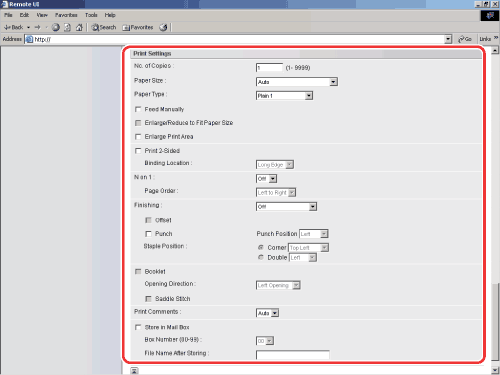
  1. Specify the settings under [Print Settings] according to your preference.

Details of each menu are shown below.

[No. of Copies] This setting enables you to specify the number of copies printed.
[Paper Size] This setting specifies the output paper size.
  • If [Auto] is selected, the most appropriate paper source is selected according to the PDF file page size.
  • If a setting other than [Auto] is selected, the file is printed so that the orientation of the long edge of the PDF file page size and the long edge of the selected paper matches.
If the paper size is set to [Auto], the default paper size is used to print data for which the paper size is larger than the maximum or smaller than the minimum available for the machine.
[Paper Type] This setting specifies the output paper type.
[Feed Manually] This setting enables you to fix the paper feed source to manual feed.
[Enlarge/Reduce to Fit Paper Size] If you select the checkbox, the selected page size is enlarged or reduced with the same ratio for both the length and width to print within the printable area. However this function is not available if [Auto] is selected in [Paper Size].
[Enlarge Print Area] This setting specifies whether to enlarge the printable area to the edge of the paper.
[Print 2-Sided] This setting specifies whether to print on one-side or both sides of the paper.
[Binding Location] This setting specifies whether to place the binding position along the long edge or the short edge of the paper. If the margin is specified on the touch panel display, the binding margin position is automatically adjusted on the front and back sides of the paper.
For more information, see "Gutter."
[N on 1] You can print several pages of PDF file data on 1 sheet of paper. Multiple pages are printed from (top) left to right.
[Page Order] If you print multiple pages on one page in the [Page Layout] settings, you can specify the order that the pages are arranged onto the source paper.
[Finishing]* This setting specifies whether to print in pages or copies.
  • If [Off] is selected, all copies of the same page are printed before the next page is printed.
  • If [Collate (Page order)] is selected, all pages of each copy are printed before the next copy is printed.
  • If [Group (Same pages)] is selected, all copies of the same page are printed before the next page is printed.
  • If [Staple+Collate] is selected, all pages of each copy (collating) are printed and stapled.
[Offset]*
  • If the checkbox and [Collate (Page order)] are selected in [Finishing], all pages of each copy (collating) are printed, and every other complete copy is offset to indicate where each copy starts.
  • If the checkbox and [Group (Same pages)] are selected in [Finishing], all copies of the same page are printed before printing the next page. Every other complete set of pages is offset to indicate where each new set starts.
[Punch]* This setting allows you to punch holes in the printed-paper.
Select the checkbox and one of either [Left], [Right], [Top], or [Bottom].
If you select both the staple and punch settings, specify the punch and staple settings so the positions match. If the positions do not match (for example, the staple position is on the right and the punch position is on the left), both settings are void and the paper is printed without either stapling or punching. The number of holes that can be punched varies depending on the type of puncher unit of the attached finisher.
[Staple Position]* This setting specifies the staple position if [Staple+Collate] is selected in [Finishing].
  • If [Corner] is selected, you can select one of either [Top Left], [Top Right], [Bottom Left], or [Bottom Right].
  • If [Double] is selected, you can select one of either [Left], [Right], [Top], or [Bottom].
[Booklet]* This setting enables you to prepare the printout for binding as a booklet. Booklet printing is a process whereby two pages of data are printed on the front and back of one page and it is folded in half to create a book.
[Print Comments] This setting specifies whether to print annotations.
  • If [Off] is selected, no annotations are printed.
  • If [Auto] is selected, only the annotations specified for printing in the PDF file are printed.
[Store in Mail Box] To store the data in a mail box, select [Store In User Inbox] and then select the destination mail box.
[File Name After Storing] To store the data in a mail box, you can specify the file name.
The file name cannot exceed 24 characters.
* The settings and settings values displayed on the Remote UI differ depending on which options are attached.
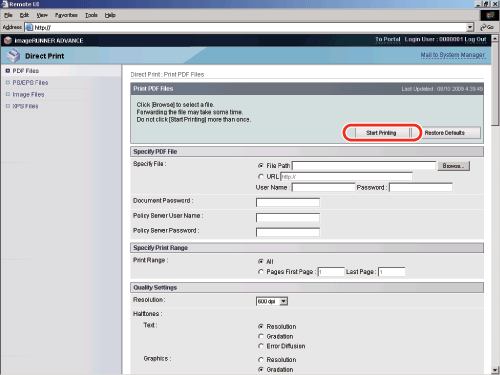
  1. Click [Start Printing].

Click [Restore Defaults] to return the settings to their default values.

Do not click [Start Printing] continuously during file transfer. The file transfer process may take some time, but continuously clicking [Start Printing] may cause the file to crash and not transfer.

After sending of a print job is completed, the screen changes and the following message appears.

Click [to Job List] to verify sent print jobs that have already been sent.


  • Back To Top