Copy > Exposure and Original Type Settings > Background Density
*
Background Density

Return to Overview


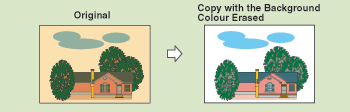
You can copy the original by erasing the background color.

This mode enables you to make copies by erasing the background color of the original. This feature is especially useful for copying originals, such as catalogues and paper, that have turned yellow from age.


Remark
  • For information on the modes which cannot be set in combination with this mode, see "Combination of Functions Chart."
  • Pressing [Adjust] for Background Density and making fine adjustments cancels the [Auto] setting for Background Density. Similarly, after you have adjusted the background density, pressing [Auto] for the density cancels the adjustment you have made for the background and automatically adjusts the density to match the background.
  • To automatically adjust the quality of the background, select [Auto] for Background Density.

  1. Place your originals → press [Options] → [Density].
  1. Press [Adjust].
  • To automatically adjust the quality of the background, press [Auto].
  1. Press [-] or [+] to adjust the density of the background → press [OK].
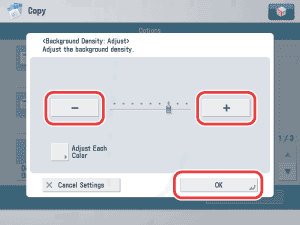
Details of each item are shown below.

[-]: You can prevent dark background color from being copied, but light areas on the original may not be copied either.
[+]: You may not be able to completely prevent dark background color from being copied, but light areas on the original are always copied.
  • If you make fine adjustments to the density, the automatic copy exposure setting is canceled, and the original is scanned according to the Fine Adjustment settings.
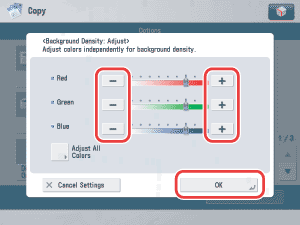
  • If you want to adjust the density of red, green, and blue color independently, press [Adjust Each Color].
  • If [Adjust Each Color] is pressed:

  • If [Adjust Each Color] is pressed:
  • Press [-] or [+] to adjust the density of each color (Red, Green, and Blue) → [OK].

  • Pressing [-] or [+] adjusts the density of each color. Pressing [-] makes the color lighter and pressing [+] makes the color darker.
  • If [Adjust All Colors] is pressed, the screen returns to the Adjust All Colors screen.

  • Back To Top