Copy > Storing Scanned Originals in Mail Box from Copy Screen
*
Storing Scanned Originals in Mail Box from Copy Screen

This mode enables you to store originals scanned from the Copy screen as a file in a Mail box. The copy mode specified on the Copy screen is stored with the file. You can also make copies of the scanned originals while storing them as a file in the mail box.


Remark
  • For information on the modes which cannot be set in combination with this mode, see "Combination of Functions Chart."
  • When you press (Stop) while copying in the Store in Mail Box (Copy upon Storing) mode, the job is not paused, but canceled.
  • You cannot store documents in the Memory RX Inbox or a Confidential Fax Inbox.

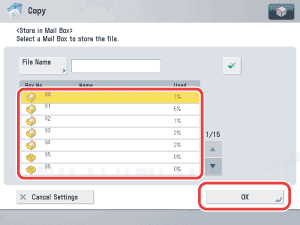
  1. Place your originals → press [Options] → [Store in Mail Box].
  1. Select the mail box number → press [OK].

  • If you want to name the document:
  • If you want to make copies of the scanned originals while storing them in the mail box:

  • If you want to name the document:
  • Press [File Name] → enter a name for the document → press [OK].
  • If you store a document without giving it a name, the machine automatically assigns the document a name using the year, month, day, and time the document was scanned. For example, if a document is stored at 1:35 (PM), 41 seconds, on January 15, 2009, its name will be <20090115133541>.

  • If you want to make copies of the scanned originals while storing them in the mail box:
  • Press [Copy upon Storing].

To store the scanned originals without copying them, deselect [Copy upon Storing] to clear the check mark.


  • Back To Top