Copy > Page Numbering
*
Page Numbering

This mode enables you to print page numbers, copy set numbers, and user-defined text onto the output.


Remark
  • For information on the modes which cannot be set in combination with this mode, see "Combination of Functions Chart."
  • Printing performance may not be optimal, depending on the original content and combination of settings.
  • If you select [Numbered Chapters] in combination with the Insert Sheets (Sheet Insertion or Chapter Page) mode, the chapter numbers are counted as follows:
  • After each chapter page is inserted
    After each sheet insertion is inserted
  • If the copy number has fewer than five digits, the machine copies it as follows:
  • Example: If the copy number is 10, "00010" is printed.
  • If the Page Numbering mode is used with the Insert Sheets mode, page numbers are not printed on the inserted pages.

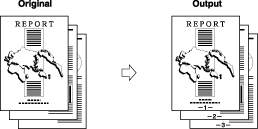
Documents can be copied with page numbers (numbers only, numbers enclosed with hyphens, with chapter numbers, or with the total page number).


  1. Place your originals → press [Options] → [Page Numbering].
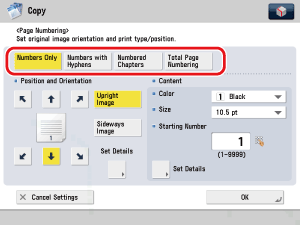
  1. Select the type of numbering ([Numbers Only], [Numbers with Hyphens], [Numbered Chapters], or [Total Page Numbering]).

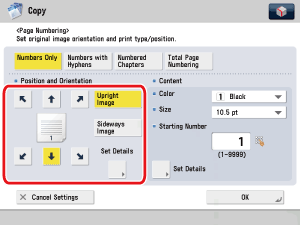
  1. Select the orientation and the position of the page numbers.

You can select the top or bottom of the paper ([] or []), one of the four paper corners ([], [], [], or []) for the printing position.

  • If you set any two of the Page Numbering, Copy Set Numbering, Watermark, or Print Date modes to print in the same position, a message asking for your confirmation is displayed when you press (Start).
  • Press [Set Details].
  • Press [X] and [Y] → press [-] or [+] to set their respective positions.
  • Select [Same as Front Side] or [Opposite to Front Side].
  • Press [OK].
  • Select the orientation of the image from [Upright Image] or [Sideways Image].

Orientation:

[Upright Image]: Press this if you are placing originals upright.
[Sideways Image]: Press this if you are placing originals sideways.

  1. Specify the print settings for the page numbers.
  • Select the color of the page numbers from the drop-down list.

You can select [Black], or [White] for the color of the page numbers.

  • Select the size of the page numbers from the drop-down list.

Select the size of the page numbers from [10.5 pt], [12.0 pt], and [14.0 pt].

  • Enter the page number to start numbering using - (numeric keys).

Any number from 1 to 9,999 may be used.

If you want to insert chapter numbers along with page numbers, specify the starting chapter number on the left (1 to 9,999), and the starting page number on the right (1 to 9,999).

If you want to insert the total page number along with page numbers, specify to have the page numbers start on the left side (1 to 9,999), and the total page number starts on the right side (1 to 20,000). To set the total page number automatically, press [Auto].

  • If [Total Page Numbering] is used with the Booklet mode, the total number of pages are printed automatically.
  1. Specify other Page Numbering settings.

If you are not specifying other Page Numbering settings, proceed to step 6.

  • To specify the number of digits to be printed:
  • To add text:
  • To count inserted sheets:

  • To specify the number of digits to be printed:
  • Press [Set Details] → [No. of Digits].
  • Press [-] or [+] to enter the number of digits → press [OK].
  • The number of digits you can specify is '2' to '5'.
    Example:
  • If the page number is 10 and number of digits is 2, "10" is printed.
  • If the page number is 10 and number of digits is 5, "00010" is printed.
  • If the specified number of digits is less than the number of digits of the actual page number, the setting is invalid.

  • To add text:
  • Press [Set Details] → [Add Characters].
  • Press [Enter] → enter the text → press [OK].

You can also select the text which has been registered in [Register Characters for Page Numbering/Watermark] in [Function Settings] (Settings/Registration). (See "User-Defined Text for Page Numbers and Watermarks.")

  • Set the position of the text → press [OK].

  • To count inserted sheets:
  • Press [Set Details] → [Inserted Sheets].
  • Select whether to count the inserted sheets → press [OK].
[Count]: Counts the sheet insertions, chapter pages, or back cover that you inserted after the first page, but only prints chapter numbers and page numbers onto the main document pages.
[Do Not Count]: Does not count the sheet insertions, chapter pages or back cover that you inserted after the first page, and only prints chapter numbers and page numbers onto the main document pages.

  1. Press [OK].

  • Back To Top