|
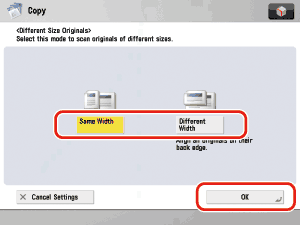
- If the originals are placed in the feeder, make sure that the different size originals are of the same weight (paper type).
- Align the top edge of the originals with the back edge of the feeder if you are placing originals with different widths.
- Set different size originals with different widths and lengths in the following combinations. Other combinations may damage the originals.
- 11" × 17" and LGL, LTR and LGL, LTR and LTRR
|
|
|
|
- If you place originals with different widths in the feeder, the originals may move slightly when fed to the platen glass. As a result, the images may be scanned and copied as slanted.
- If the Different Size Originals mode is set, the scanning speed may be slower than normal.
- Stapling cannot be performed if you place originals with different widths.
- If the Different Size Originals mode is used with the 1-Sided
 2-Sided mode, the copies are output as one-sided copies on paper of their respective sizes when the originals for the front and back sides of a two-sided copy are different in size. 2-Sided mode, the copies are output as one-sided copies on paper of their respective sizes when the originals for the front and back sides of a two-sided copy are different in size.
|
|