Copy > Image Combination
*
Image Combination

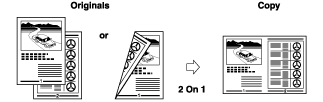
This mode enables you to automatically reduce two, four, or eight originals, as well as two-sided originals or the facing pages of a book, to fit onto one side or both sides of a selected paper size.


Remark
  • For information on the modes which cannot be set in combination with this mode, see "Combination of Functions Chart."
  • Originals copied/scanned in the Image Combination mode must all be the same size. You cannot use the Image Combination mode with the Different Size Originals mode.
  • For the Copy function, you can change or specify the number of copies or 2-Sided Original mode before scanning the next batch of originals (i.e., between batches).
  • The reduction ratio is automatically set so that the originals fit onto the selected paper size.

  • 2 On 1

This setting reduces two 1-sided originals or one 2-sided original to fit onto one side or both sides of one sheet of paper.

  • 4 On 1

This setting reduces four 1-sided or two 2-sided originals to fit onto one side or both sides of one sheet of paper.

  • 8 On 1

This setting reduces eight 1-sided or four 2-sided originals to fit onto one side or both sides of one sheet of paper.


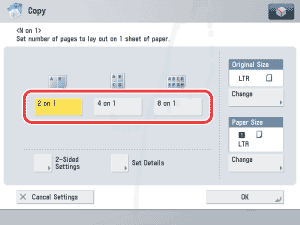
  1. Place your originals → press [Options] → [N on 1].
  1. Select the type of N on 1.

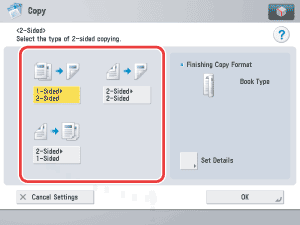
  1. Press [2-Sided Settings] → select the type of two-sided orientation.

If you are not specifying two-sided copy settings, proceed to step 5.

  1. Press [Set Details] → select the type of copy → press [OK] → [OK].

Details of each item are shown below.

[Book Type]: The front and back sides of the original have the same top-bottom orientation.
[Calendar Type]: The front and back sides of the original have opposite top-bottom orientations.
  1. Press [Set Details] → select the order of the layout → press [OK].

If you do not change the settings by pressing [Set Details], the order of the layout are as follows:

2 On 1: Left → Right
4 On 1 and 8 On 1: Upper Left → Upper Right → Lower Left → Lower Right
  1. Press [Change] for the size of the original → select the size → press [OK].

If the original is two-sided, press [2-Sided Original] → select the type of two-sided original → press [OK] → [Next].

Details of each item are shown below.

[Book Type]: The front and back sides of the original have the same top-bottom orientation.
[Calendar Type]: The front and back sides of the original have opposite top-bottom orientations.
  • To select an A or B series paper size, press [A/B-size].
  1. Press [Change] → select the size of paper → press [OK].

If you want to make two-sided copies, press [2-Sided Copy] → select the type of two-sided copy → press [OK].

  • To select an A or B series paper size, press [A/B-size].
  • The machine automatically selects the copy ratio depending on the selected paper size.
  • If you set the Image Combination mode, the Center Shift mode is also automatically set.
  1. Press [OK].

  • Back To Top