| |
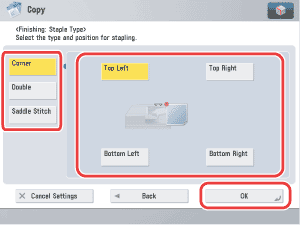
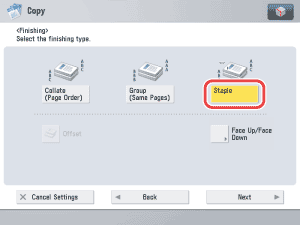
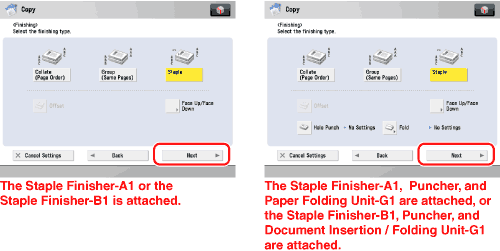
- Select the stapling type ([Corner], [Double], or [Saddle Stitch]).
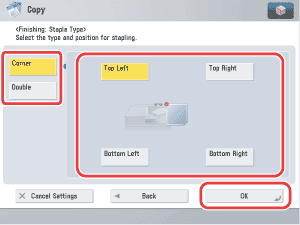
If you want to select [Corner] or [Double]:
- Press [Corner] or [Double] → select the stapling position → press [OK].
If you want to select [Saddle Stitch]:
- To change the position of the saddle stitch, press [Change Stitching Position] → select the paper to adjust → adjust the position → press [OK].
- If you want the edges of the booklet trimmed, press [TRIM].
- [TRIM] is displayed if the Booklet Finisher-A1 and the Inner Booklet Trimmer-A1 is attached. (If you are using the imageRUNNER ADVANCE C9075 PRO/C9065 PRO)
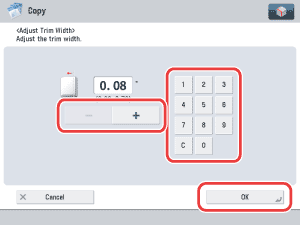
- If you want to specify the trim adjustment, press [Adjust Trim Width] → [OK].
Select the paper source to use for the main document.
- If you want to add covers, press [Add Cover].
- Select whether to print on the covers → [OK].
- Press [Change] → select the paper source that contains the paper you want to use for the main document → press [OK].
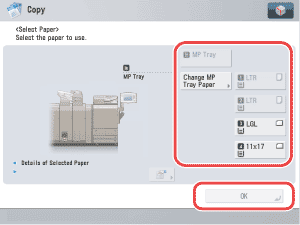
If you selected the paper to use for the main document from [Change MP Tray Paper], select the paper size and press [Next] → select the paper type and press [OK].
If you pressed [Add Cover], select [Print] or [Leave Blank] for the cover → press [Change] → select the paper source to use for the cover page → press [OK].

If you are feeding cover paper from the Document Insertion Unit-H1, Document Insertion Unit-J1, or Document Insertion/Folding Unit-G1, select [Leave Blank].
If you selected the paper to use for the cover from [Change MP Tray Paper], select the paper type → press [OK].
- The paper used for the cover page must be the same size as that which is used for the main document.
- If you are loading preprinted paper to use as the cover page into the document insertion unit, you must load the paper face up.
- Only 16 lb bond to 80 lb cover (60 to 220 g/m2) paper can be used for the main document. (for the Booklet Finisher-A1)
- Only 16 lb bond to 80 lb cover (60 to 220 g/m2) paper can be used for the main document. (for the Booklet Finisher-B1)
- Up to 110 lb cover (300 g/m2) paper can be used for the cover paper. (for the Booklet Finisher-A1)
- Up to 140 lb index (256 g/m2) paper can be used for the cover paper. (for the Booklet Finisher-B1)
- If you are using Heavy 3 or Heavy 4 paper for the cover sheets, you can only print on the outside of the front cover or outside of the back cover.
- If you press
 , the detailed information of selected paper is displayed. , the detailed information of selected paper is displayed.
|







 (Start).