Copy > Flow of Copy Operations
*
Flow of Copy Operations

This section describes the flow of basic copy operations.


Remark
  • Before using the Copy function, it is useful to read the following topics:
  • Main power and control panel power (See "Before You Start Using This Machine.")
  • Entering characters from the touch panel display (See "Basic Operations.")
  • Routine maintenance (See "Maintenance.")
  • If you are using a login service, log in and log out using the procedure for the login service you are using before and after operating the machine.
  • If you are using Department ID Management with the Card Reader-C1/Copy Card Reader-F1, see "Optional Products (imageRUNNER ADVANCE C9075 PRO/C9065 PRO)" or "Optional Products (imageRUNNER ADVANCE C7065/C7055)."
  • If you are using Department ID Management, see "Basic Operations."
  • If you are performing user authentication using the SSO-H login service, see "Basic Operations."
  • To cancel all settings, press (Reset).

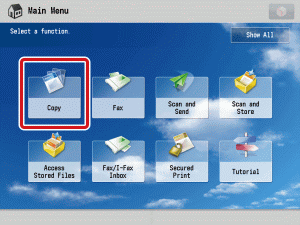
  1. Select [Copy] from the Main Menu screen.

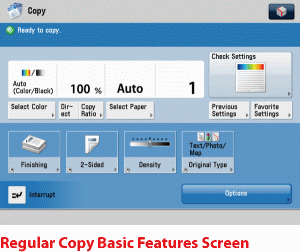
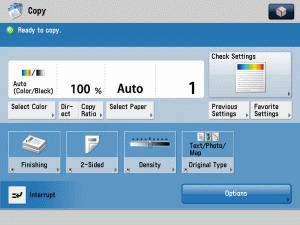
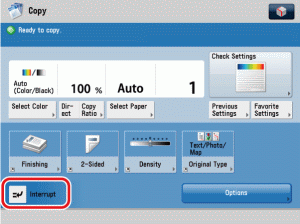
The Copy Basic Features screen is displayed.

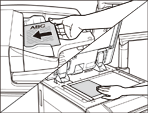
  1. Place your originals.

  • For instructions on placing your originals, see "Basic Operations."
  • If [Auto Collate] is set to 'On', the Collate or the Offset Collate mode is automatically set when you place your originals in the feeder. (See "Auto Collate.")
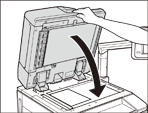
  1. Gently close the feeder/platen cover.

The paper size is recognized automatically. If the paper size recognized automatically is different from the paper size you want, press [Paper Select] → select the copy paper size. (See "Paper Selection." )

  1. Specify the desired copy modes on the Copy Basic Features screen.

  • When the Auto-Color Select mode is set and your originals contain color sections, the machine copies them in the Full Color mode. However, the machine may copy the color originals in the Black mode under the following conditions. To avoid this, set the color mode to 'Full Color'. (See "Changing Color Modes")
  • If the originals contain a few color sections
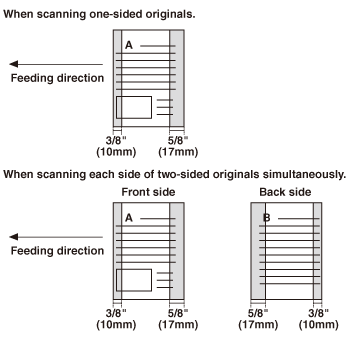
  • If the color sections are located only in the areas of the originals, as indicated by the shaded portions of the illustrations below, when loading the originals in the feeder

  • If the originals contain light color densities
  • If the color sections of the original are close to black
  • On the Regular Copy Basic Features screen, you can set the color mode, paper type, and copy ratio.
  1. Set the desired copy modes on the Options screen.
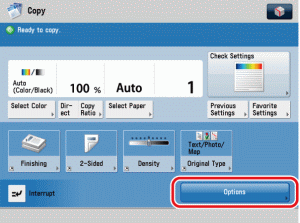
  • Press [Options].

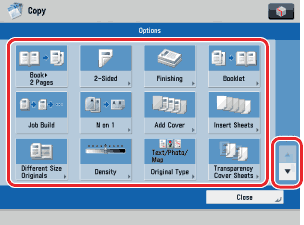
  • Press the desired mode key to set the mode.

The Options screen is divided into three screens. Press [] or [] to display the desired mode.

  1. Press - (numeric keys) to enter the desired copy quantity (1 to 9,999).

If you make a mistake when entering values, press (Clear) → enter the correct value.

The copy quantity appears on the right side of the Copy Basic Features screen.

  • You cannot change the copy quantity while the machine is copying.
  • The number of copies which can be set varies according to the copy modes you have set.
  1. Press (Start).

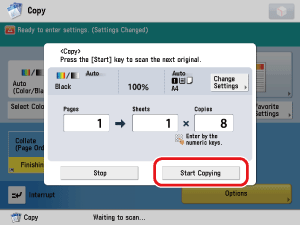
If the following screen is displayed, follow the instructions on the touch panel display → press (Start) once for each original. When scanning is complete, press [Start Copying].

Copying starts.

  • You cannot change copy mode settings, such as the copy quantity and paper size, while the machine is copying.
  • If there is a current job, the machine scans the original, and waits to print it. Printing starts when the current job is complete.
  1. If you want to stop, interrupt, or copy another original during a copy job, follow the instructions below.
  • If you want to stop a copy job:
  • If you want to interrupt a copy job:
  • If you want to start copying the next original while a previous original is printing:

  • If you want to stop a copy job:
  • Press (Stop).
  • Several copies may be output even after you press (Stop).
  • You can also cancel a copy job from the Status Monitor/Cancel screen. (See "Canceling a Copy Job.")

  • If you want to interrupt a copy job:
  • To interrupt a copy job when you need to make priority copies, press [Interrupt].

  • For instructions on interrupting a copy job, see "Interrupt Mode."

  • If you want to start copying the next original while a previous original is printing:
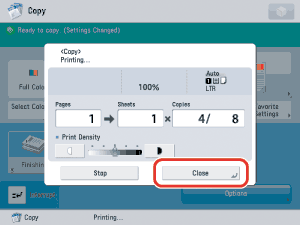
  • Press [Close] → place your originals → press (Start).

  • For instructions on reserving a copy job, see "Reserved Copying."

  1. When copying is complete, remove your originals.

  • Back To Top