1
Insert the USB memory device in the USB memory slot on the printer.
2
Press [  ] (
] ( Application).
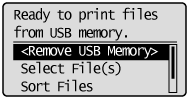
] (Application).The "USB Direct Print Mode Screen" is displayed.
 |
When department ID management is set, the screen is displayed when the departmental ID and PIN are entered. After entering the department ID and PIN, select [<Log In>], and then press [OK].
|
|
NOTE
|
|
In order to automatically display the USB direct print mode screen
When the [Automatically Display USB Direct Print Screen] setting is checked on [USB Direct Print] in the [USB Direct Print Settings] on the Remote UI, the "USB Direct Print Mode Screen" is displayed automatically when a USB memory device is inserted.
|
3
Select [Select File(s)] with [  ] and [
  ], and then press [OK].
] and [ ], and then press [OK].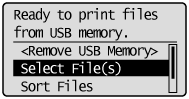
Changing the order the files are displayed in Step 5
|
(1)
|
Select [Sort Files] with [
] and [ ], and then press [OK].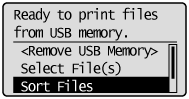 |
|
(2)
|
Since the message is displayed, press [OK].
|
|
(3)
|
Select the sorting criteria with [
] and [ ], and then press [OK].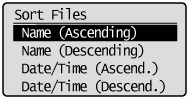 |
4
Select the type of file to print with [ ] and [ ], and then press [OK].
] and [ ], and then press [OK].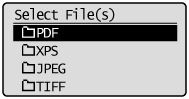
5
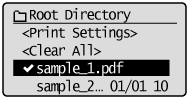
Select the file to print with [ ] and [ ], and then press [OK].
] and [ ], and then press [OK].|
|
[
 ] will be attached to the file name. If a file with [ ] attached is selected, and [OK] is pressed again, the selection is removed. ] will be attached to the file name. If a file with [ ] attached is selected, and [OK] is pressed again, the selection is removed.If a folder is selected, and [OK] is pressed, the list of files inside the folder is displayed.
If [<Clear All>] is selected, all the file selections are removed.
|
|
|
Up to 10 files in the same folder can be selected.
|
|
|
If the folder hierarchy is moved, all of the file selections are removed.
|
6
Select [<Print Settings>] with [ ] and [ ], and then press [OK].
] and [ ], and then press [OK].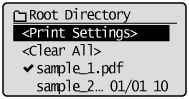
When printing using an XPS file print ticket
|
(1)
|
Select [<Use Print Ticket>] with [
] and [ ], and then press [OK].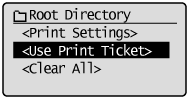 |
|
(2)
|
Select [<Start Printing>] with [
] and [ ], and then press [OK].It is printed using the print settings specified inside the file.
|
7
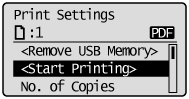
Select [<Start Printing>] with [ ] and [ ], and then press [OK].
] and [ ], and then press [OK].|
|
To confirm/ change the print settings, select the setting to be confirmed/changed with [
] and [ ], and then press [OK]. For details on print settings, see "Print Setting Menu List." |
The selected file begins printing.
 "
"