Maintenance > Paper Deck Unit-A1/POD Deck Lite-A1 (Optional) > Loading Paper
*
Loading Paper

Return to Overview


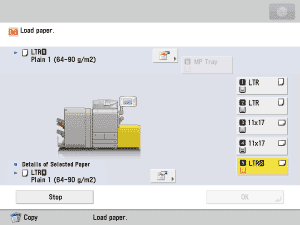
If you select the paper deck when it has no paper, or if the paper deck runs out of paper during a print job, a screen prompting you to load paper appears on the touch panel display.

Follow the procedure below to load paper into the paper deck.


Remark
  • When loading paper, take care not to cut your hands on the edges of the paper.
  • Never place paper or any other items in the empty part of the paper deck next to the paper stack. Doing so may cause paper jams.
  • A paper blower is attached inside the paper deck. Do not insert paper clips or other foreign objects into the blower.
  • Paper jams may occur if you load paper into the Paper Deck Unit-A1/POD Deck Lite-A1 in a low humidity environment. If paper jams occur, follow the instructions on the touch panel display to remove the jammed paper. In addition, make sure that the loaded paper is not curled. Paper curls must be straightened out prior to loading.
  • A screen prompting you to load paper also appears if the paper deck is not fully inserted to the machine. Make sure that paper deck is properly in place.
  • Do not load the following types of paper into the paper deck. Doing so may cause a paper jam.
  • Severely curled or wrinkled paper
  • Thin straw paper
  • Paper which has been printed on using a thermal transfer printer (Do not print on the reverse side of this paper either.)
  • Fan the stack of paper well before loading it, and align the edges of the paper stack on a flat surface.
  • The Paper Deck Unit-A1 can only accommodate paper from 14 lb bond (52 g/m²) to 80 lb cover (220 g/m²) in weight.
  • The POD Deck Lite-A1 can only accommodate paper from 14 lb bond (52 g/m²) to 110 lb cover (300 g/m²) in weight.
  • If a message prompting you to load paper appears during printing, the remaining prints are automatically made after you load the correct paper. If you select another paper source, the remaining prints are made after you press [OK].
  • If you want to change the paper loaded in the paper deck from plain to coated paper, wait for the warm air fan to readjust its temperature before you change the paper.

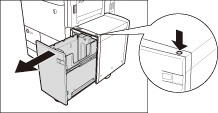
  1. Press and release the open button to open the paper deck.

The inside lifter automatically descends to the paper loading position.

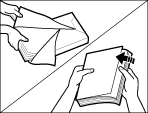
  1. Open a package of paper, and remove the paper stack.
  • When loading paper, take care not to cut your hands on the edges of the paper.
  • Rewrap any remaining paper in its original package, and store it in a dry place, away from direct sunlight.
  • For high-quality printouts, use paper recommended by Canon.
  • Before loading paper, always fan the sheets several times, and align the edges to facilitate feeding.

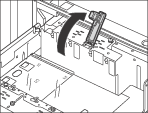
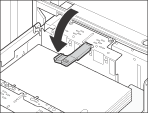
  1. Lift the feeding support roller.

If the Paper Deck Unit-A1 is attached, proceed to step 4.

  • When loading paper, be sure to first lift the feeding support roller. If you load paper without raising the feeding support roller, it may become detached, and paper may not be fed properly
  • Use of the paper deck with the feeding support roller detached, may cause paper jams.
  1. Load the paper stack into the paper deck.

Make sure that the inside lifter has lowered before loading paper, even out the edges of the paper stack, and stack the paper neatly against the inner paper guide.
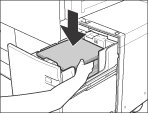
Paper Deck Unit-A1
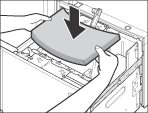
POD Deck Lite-A1

  • Do not load paper into the paper deck that has previously been printed on, as this may result in a malfunction or damage to the machine. Always use the stack bypass to feed paper when you want to print on the back side of a sheet of paper that already has something printed on its front side (2nd Side of 2-Sided Print).
  • Make sure that the size change plate is properly aligned with the marks for the desired paper size. If the size change plate is not properly aligned, the paper deck may become damaged. For more information on aligning the size change plate, see "Changing the Paper Size for the POD Deck Lite-A1."
  • Paper which has been rolled or curled must be straightened out before loading it into the paper deck.
  • Make sure that the height of the paper stack does not exceed the loading limit mark () on the inside of the paper deck.
  • Load the paper stack in stages, adding approximately 600 sheets of paper (17 lb bond (64 g/m2)) or 550 sheets of paper (20 lb bond (80 g/m2)) at a time. If the paper deck can accommodate more paper, the lifter will descend.
  • For instructions on loading transparencies, see "Loading Transparencies."
  • Hot air that is blown by the fan may warm the inner size change plate of the POD Deck Lite-A1.
  • If there are instructions on the package of paper about which side of the paper to load, follow those instructions.
  • When paper is loaded in the paper deck, the side facing up is the one printed on.
  • If problems occur, such as poor print quality or paper jams, try turning the paper stack over, and reload it. However, you cannot turn textured or one-sided coated paper over. Change this paper instead.
  • For more information on the print direction of preprinted paper (paper which has logos or patterns already printed on it), see Chapter 17, "Appendix," in Getting Started.
  1. Lower the feeding support roller.

If the Paper Deck Unit-A1 is attached, proceed to step 6.

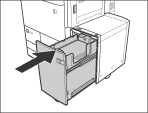
  1. Gently push the paper deck back into the machine until it clicks into place in the closed position.

The inside lifter automatically rises, and prepares the paper deck for feeding.

  • When closing the paper deck, be careful not to get your fingers caught, as this may result in personal injury.

  • Back To Top