






| Registering a Series of Frequently Used Functions in One Button |
|
The Quick Menu is a function that increases the efficiency of operations that use functions of the machine for an office. You can create and register a series of frequently used functions such as Copy, Scan and Send, and Scan and Store in one button. There are two types of buttons: the Shared Button that can be used by all users and the Personal Button that can only be set and used by each user.
This section describes the procedure for creating a "PDF-Scan" shared folder on a computer drive that is connected to the machine via the SMB protocol and send a scanned two-sided document to that folder as a PDF file with the OCR (Text Searchable) setting. The screen may differ, depending on the version of your operating system. |

| Required Condition |
|
 |
|
||||
|
Follow the procedures below. Creating a Shared Folder Registering an Address Registering a Procedure for Sending from the Machine in the Quick Menu Sending a Document Using the Quick Menu |
|
Creating a Shared Folder |
|
For Windows |
For Windows XP, right-click [My Computer] → click [Manage] → right-click [Computer Management (Local)] → click [Properties] → check for the computer name on the [Computer Name] sheet. For Windows Vista, click [
|
 ] (Start) → right-click [Computer] → click [Properties] → check for the computer name.
|
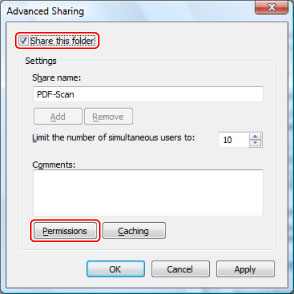
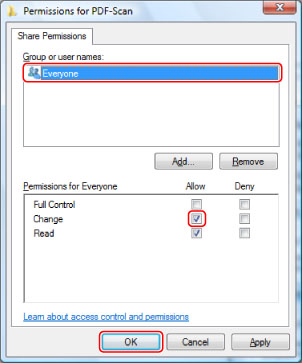
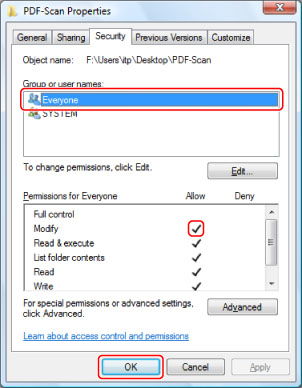
For Windows XP, right-click the "PDF-Scan" folder → select [Properties] to display the [PDF-Scan Properties] dialog box → click the [Sharing] tab → select [Share this folder] → click [Permissions]. For Windows Vista, right-click the "PDF-Scan" folder → select [Properties] to display the [PDF-Scan Properties] dialog box → click the [Sharing] tab → click [Advanced Sharing] → select [Share this folder] → click [Permissions].
|
|
|
|
A shared folder to send data is created.
|
 . For Windows Vista, the shared folder is displayed as
  .
.|
For Mac You can specify the settings to use the shared folder ([Public] folder). |
|

Sharing the [Public] folder is started on the network. You can use the shared folder in [Drop Box] under [Public]. You can access the [Drop Box] as follows: On the [Go] menu, click [Home] → [User] → enter the login user name → select [Drop Box] under [Public].
|

|
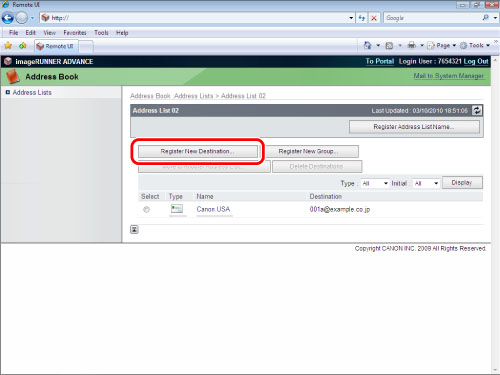
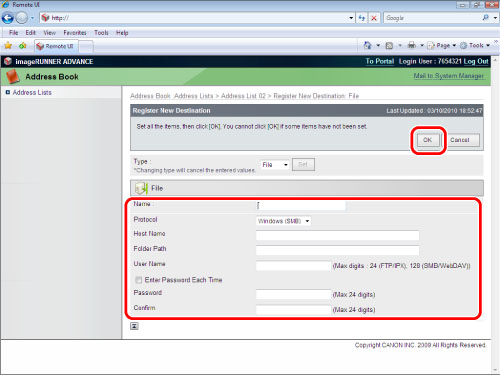
Registering an Address You can register an E-mail address effectively from the Remote UI. You can use the shared folder in [Drop Box] under [Public]. You can access the [Drop Box] as follows: On the [Go] menu, click [Home] → [User] → enter the login user name → select [Drop Box] under [Public].
|
|
Using the Remote UI |
http://<IP address of the machine>
The Remote UI screen appears.
|

 (Settings/Registration) on the control panel and follow the procedure below.
|

|
|

The address is registered. |
|
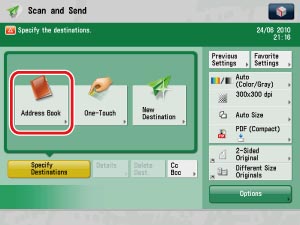
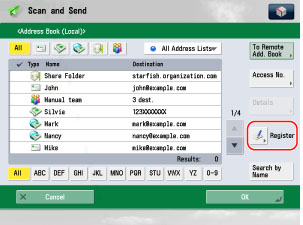
Using the Touch Panel Display |
|
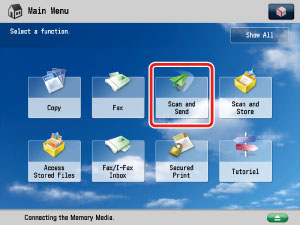
 (Main Menu).
|
|
|
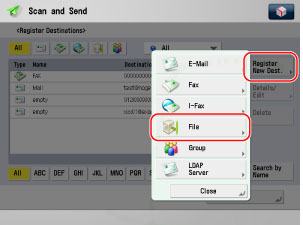
|
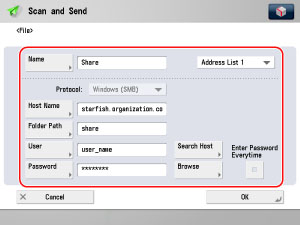
|
|
Registering a Procedure for Sending from the Machine in the Quick Menu |
|
|
|

|
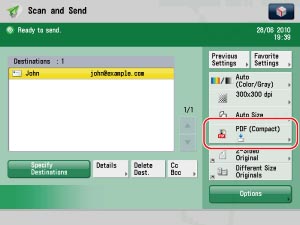
If [Set Details] is not displayed, press [OCR(Text Searchable)] on the File Format screen → proceed to step 7. |
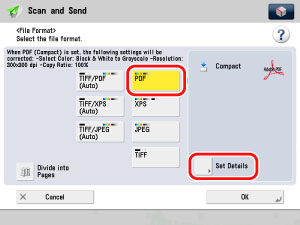
|

|
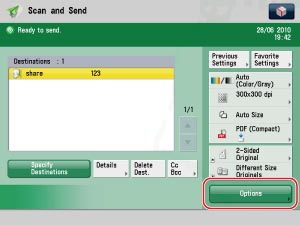
To scan different sized originals, press [Different Size Originals]. This mode enables you to scan different size originals with the same widths (11" × 17" and LTR, or LTRR and STMT, etc.) or different widths (11" × 17" and LGL, or LTR and LGL, etc.), together as one group by setting them in the feeder. You can reduce the time it takes to send because you do not need to send according to the original size. |

You can select [Auto(OCR)] only when sending to e-mail or server. When PDF (OCR) or XPS (OCR) is set as the file format, set [Auto(OCR)] to 'On' to automatically extract the first text block in the document for use as its filename. |

The sending settings are complete. If you press |
 (Start), sending operation begins, however, this section proceeds to the procedure for registering these operations in the Quick Menu.
|
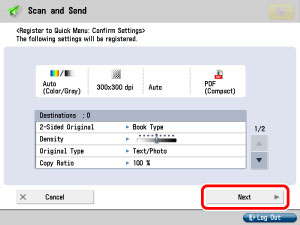
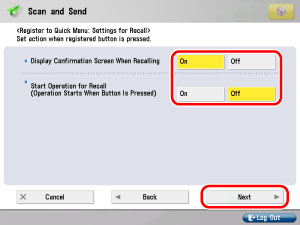
 on the top right of the screen → [Register to Quick Menu].

|
|
|

|
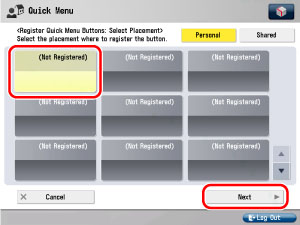
Press [Name] → enter a name using the keyboard. Press [Comment] → enter comment using the keyboard.
|

|
The Quick Menu screen is displayed. |
 (Quick Menu).
|

|

The settings registered in the button are processed.
|
| Reference Information |
You can convert original color/grayscale images scanned at a resolution of 300 dpi to compact (approx. 1/10 original size) PDF files. This mode eliminates the issue of the large file size of digitized documents, reducing color documents to the size of black-and-white documents. This also enables you to reduce the load on the network and servers.
This mode enables you to perform OCR (optical character recognition) to extract data that can be recognized as text from the scanned image, and add it as a transparent layer of text to create a PDF file that is searchable. A searchable PDF file enables you to quickly search for the necessary information on the PDF.
This mode enables you to divide and extract the text, line drawings, and background of a scanned image, and convert the text and line drawings to scalable outline data to be placed on the background when creating a PDF file.
Outlining the text edges eliminates "jagginess" even when the text is enlarged, enhancing the overall quality of the text in the PDF.
The outlined data on the PDF can be extracted and used in Adobe Illustrator.
You can set a password to the PDF file. If the PDF is encrypted with a password, you cannot open, print, or change the PDF file without entering the correct password. If you want to restrict access, it is recommended that you set a password before sending.
By storing the specified send settings as the default settings, you can recall the settings without specifying the settings again. |
| Troubleshooting |
If you cannot use SMB to communicate with Windows XP, follow the procedures below.
Right-click [My Network Places] → select [Properties] → right-click [Local Area Connection] → select [Properties] → click the [Advanced] tab → click [Settings] → click the [General] tab → click [Off] → [OK].
Right-click the shared folder → select [Properties] → click the [Sharing] tab → select [Allow network users to change my files] → click [Apply].
Right-click the shared folder → select [Properties] → click the [General] tab → deselect [Read-only] → [Apply].
Right-click the shared folder → select [Properties] → click the [Sharing] tab → select [Permissions] → [Apply].
Right-click the shared folder → select [Properties] → click [Security] tab → select [Allow] for <Modify> → [Apply].
Click [Start] → [Control Panel] → [Administrative Tools] → [Local Security Policy] → [Local Policies] → [Security Options] → [Microsoft network server: Digitally sign communications (always)] → [Disabled] → [Apply] → restart Windows.
If you are using Windows XP, you can login to the computer using a local account without a password set. However, the following issues may arise:
The above issues related to accounts with no specified password arise because authentication was not performed at the time the folder on the network was accessed. From a security perspective, and to avoid the above issues, login using an account with a password.
When a computer that one or more users log on to is restricted by the system administrator in an Active Directory environment, follow the procedure below to register the name of the computer. Open the user account properties dialog box. Click [Logon To] to open the [Logon Workstations] dialog box → set the computer name in the user account properties dialog box to "CANON + the last 8 digits of the MAC address of the computer + 00". For example, if the MAC address of the computer you are using is "00:00:11:22:33:44", set "CANON1122334400". |