Settings/Registration > Preferences > Paper Settings > Registering/Editing Custom Paper Types > Adjusting the Image Position on a Custom Paper Type > Adjusting Left Edge Alignment
*
Adjusting Left Edge Alignment

Return to Overview


This setting enables you to adjust the image location, by checking whether the register marks on the test page align with the image at the left edge of the paper toward the feeding direction.


  1. Press (Settings/Registration) → [Preferences] → [Paper Settings] → [Paper Type Management Settings].
  1. Select the paper type that you want to edit from the list → press [Details/Edit].
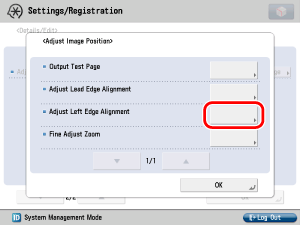
  1. Press [Change] next to [Adjust Image Position].
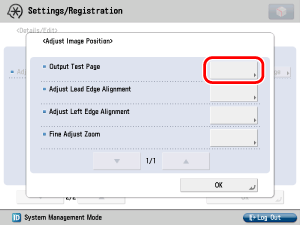
  1. Press [Output Test Page].

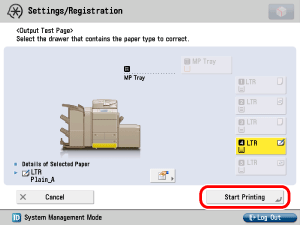
  1. Select a paper source that contains a custom paper size → press [Start Printing].

The test page is printed.

  • 139.7 mm × 182.0 mm to 330.2 mm × 487.7 mm paper can be used for the test pages. Make sure that a sufficient supply of paper is loaded into the machine before starting this procedure.
  • If you perform test page using a paper smaller than 11" × 17" or A3, the entire image cannot be printed on the paper. Nevertheless, you can read the register mark, because the tail edge you do not have to check is lacking.
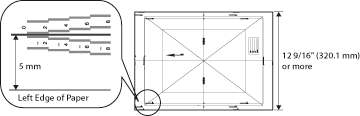
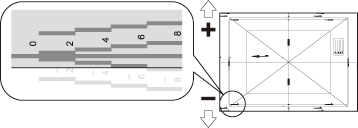
  • If you perform a test page using paper that is perpendicular to the feeding direction and is 12 9/16" (320.1 mm) or more in length, the A1 register marks will be printed 5 mm inside the left edge of the paper. From the feeding (lead) edge of the test page, take a ruler and measure 5 mm inside the left edge of the paper, and place a mark there. Place another mark to the right of the A1 register marks (5 mm inside the left edge of the paper). Draw a straight, horizontal line between the two marks you just made. Compare the line you just drew with the center line of the A1 register marks. If the two lines are askew from each other, the distance between the two lines determines how much you have to adjust the image location.

In the example above, the center line of the A1 register marks and the drawn line are aligned. Therefore, you do not need to adjust the image location.

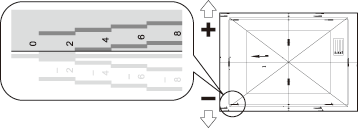
  1. Check the location of the left edge image on the front side of the test page.

In the above example, the center line of the register mark is outside the left edge of the test page (center line of the register mark is NOT printed). Follow step 7 and 8 to adjust the left edge of the image on the front side of the test page.

  1. Press [Adjust Left Edge Alignment].

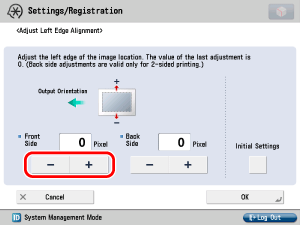
  1. Press [-] or [+] for [Front Side] to input the number of pixels to shift the image.

Input the value from the test page.

Following the example in step 6, input [+4] for [Front Side].

[+]: Press when the center line of the register mark is located outside the edge of the test print (the center line of the register mark is NOT printed). The image is shifted to the right as seen from the feeding direction of the paper, according to the number of pixels entered.
[-]: Press when the center line of the register mark is located inside of the edge of the test print. The image is shifted to the left as seen from the feeding direction of the paper, according to the number of pixels entered.
  1. Turn over the test page → check the left edge image on the back side of the test page.

In the above example, the center line of the register mark is inside the left edge of the test page.

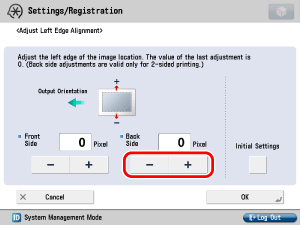
  1. Press [-] or [+] for <Back Side> to input the number of pixels to shift the image.

Input the value from the test page.

Following the example in step 9, input [-6] for [Back Side].

[+]: Press when the center line of the register mark is located outside the edge of the test print (the center line of the register mark is NOT printed). The image is shifted to the right as seen from the feeding direction of the paper, according to the number of pixels entered.
[-]: Press when the center line of the register mark is located inside of the edge of the test print. The image is shifted to the left as seen from the feeding direction of the paper, according to the number of pixels entered.
  1. Press [OK].
  1. Perform the test page again, and check the location of the image.

Repeat steps 6 to 11 until the center line of the register mark aligns with the left edge of the paper.

  • When you open the [Adjust Image Position] screen again after you close that screen by pressing [OK], the values on screen are returned to [0]. Nevertheless the adjusted value is effective. If you repeat steps, read off the value of register marks from new test page and input the new value.
  1. Press [OK].

  • Back To Top