Printing Files with Multiple Pages on One Page (N On 1)
This mode enables you to automatically reduce multiple pages to fit on a single page when printing a PDF file. You can reduce 2, 4, 6, 8, 9, or 16 pages to fit on one page.
|
IMPORTANT
|
|
This mode is only available for printing files stored in the memory media.
You can use this mode only when printing PDF files.
|
1.
Press

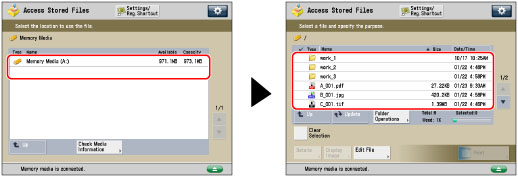
(Main Menu) → [Access Stored Files] → [Memory Media].
2.
Select the desired Memory Media → select the directory where the file you want to print is stored.
3.
Select the desired file → press [Print].
4.
Press [Options] → [N on 1].
To change the paper source, see
"Paper Selection."5.
Select the type of N on 1.
To select the order of the layout, press [Set Details]. Select the order of the layout → press [OK].
If you do not change the settings by pressing [Set Details], the order of the layout is as follows:
|
2 on 1:
|
Left → Right
|
|
All other options except 2 on 1:
|
Upper Left → Upper Right → Lower Left → Lower Right
|
You can press [2-Sided Printing] to specify settings for 2-sided printing.
To change the paper size, press [Change] for <Paper Size> → select the paper size → press [OK].
|
NOTE
|
|
The machine automatically selects the zoom ratio depending on the selected paper size.
|
6.
Press [OK] → [Close].