Login Services
Login services are authentication services that manage the user information of MEAP-compatible Canon devices. This section provides information on these authentication services.
|
IMPORTANT
|
|
The authentication services available for use differ depending on the device you are using. For more information, see the manual accompanying your device.
|
Authentication Services of MEAP-compatible Canon Devices
User authentication for MEAP-compatible Canon devices is performed based on MEAP authentication.
MEAP authentication prompts entry of a user name and password when the power of a Canon device is turned ON or when the user is switched by pressing

(ID).
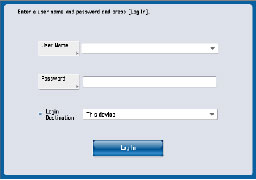
The appearance of the screen differs depending on the selected MEAP authentication service. The following screen is the Login screen when the SSO-H authentication service is selected.
|
NOTE
|
|
The appearance of the Login screen may differ depending on the model of the machine.
|
Types of Authentication Services
The three authentication services described below are provided as login services for MEAP-compatible Canon devices.
Department ID Management (Default Authentication)
Provides the No Authentication function (no login screen displayed) and the Department ID Management function.
Select Default Authentication for the login service if you do not want to perform authentication or if you want to select Department ID Management.
SDL (Simple Device Login)
Performs user authentication (login) based on user information (user name and password) registered in advance by the administrator in the Canon device's hard disk.
Unlike Department ID Management, both alphabetical characters and numbers can be used in registered information. SDL user registration is performed from the SDL User Register/Edit screen.
SSO (Single Sign-On)/SSO-H (Single Sign-On H)
The following three user authentication methods are available for SSO or SSO-H:
Domain Authentication
Local Device Authentication
Domain + Local Device Authentication
This method performs login by connecting to the domain controller on the network and using the information (user name and password) managed by Active Directory. By using this method, you can log in to the network from a Canon device using the same user name and password for computers and other network devices.
|
NOTE
|
|
For more information on the supported authentication devices, see the manual accompanying your device.
To use SSO, you must set install an application module called SA (Security Agent) on a networked computer. If you are using SSO-H, it is not necessary to install SA.
|
Flow of Login Service Settings
The flow of login service settings is described below. For more information, see the manual accompanying your device.
|
1.
|
Deciding the login service
|
Firstly, decide which authentication service to use.
|
|
2.
|
Setting the login service
|
Set the authentication service from the [System Management] page of SMS.
|
|
3.
|
Registering user information in the login service
|
Register user information for the set authentication service.
|