Remote UI > Managing Inboxes > Managing Memory RX Inbox > Managing Memory RX Inbox
*
Managing Memory RX Inbox

Return to Overview


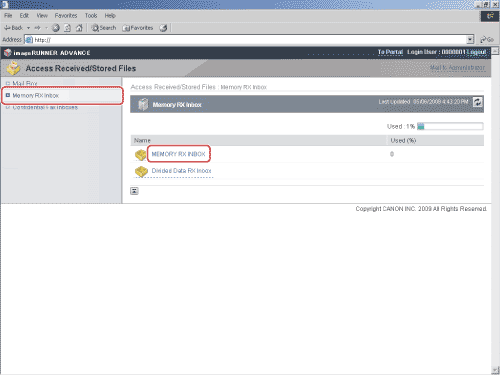
  1. Click [Access Received/Stored Files] → select [Memory RX Inbox] from the menu → click [Memory RX Inbox].

If the Memory RX Inbox is set with a password, enter the password → click [OK].

  1. Change the password of the Memory RX Inbox, or select an operation to be performed for a document.
  • To change the password of the Memory RX Inbox:
  • To print documents:
  • To send documents:
  • To delete documents:
  • To specify Memory Lock Settings:
  • To display the details of a document:

  • To change the password of the Memory RX Inbox:
  • Click [Settings].
  • Select [Set Inbox Password] → set the password → click [OK].
  • You cannot change the name of the Memory RX Inbox. Only the password can be specified or changed.
  • For more information on the Memory RX Inbox settings, see "Fax/I-Fax Inbox."

  • To print documents:
  • Select the documents that you want to print → click [Print].
  • Click [Start Printing].
  • A document in the Memory RX Inbox is automatically deleted once it is printed.

  • To send documents:
  • Select the documents that you want to send → click [Send].
  • Specify the address, user, and send settings → click [Start Send].

By selecting a document and clicking the buttons under Document Order, you can change the order in which the documents are sent.

  • [Move to top]: Moves to the top
  • [Move up one level]: Moves up one level
  • [Move down one level]: Move down one level
  • [Move to bottom]: Move to bottom

If you want the document to be automatically deleted after it is sent, select the [Delete After Sending] check box.

Click [Address Book] under Set Destination to display a list of destinations from which you can select the desired destination.

You can delete an address from the list by selecting it and clicking [Delete].

  • For more information on send settings, see "Fax/I-Fax Inbox" and "Scan and Send."

  • To delete documents:
  • Select the documents that you want to delete → click [Delete].
  • Once a document is deleted, it cannot be retrieved.

  • To specify Memory Lock Settings:
  • Click [Memory Lock Settings] → specify the settings as necessary → click [OK].

For more information on the Memory Lock Settings, see "Using the Machine to Send/Receive a Fax."


  • To display the details of a document:
  • Click the destination.

You can also click an icon in Type to display the document details.

Displayed Icons:

Forwarded fax document or fax document saved in memory.
Forwarded I-fax document or I-fax document saved in memory.

  • Back To Top