Remote UI > Managing Inboxes > Managing Mail Boxes
*
Managing Mail Boxes

Return to Overview


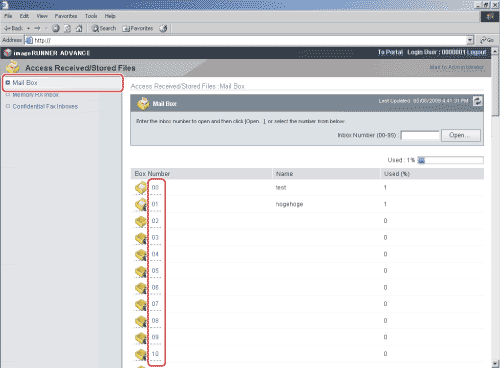
  1. Click [Access Received/Stored Files] → select [Mail Box] from the menu → click the number of the desired Mail Box.

If the desired inbox is set with a password, enter the password → click [OK].

You can also select the desired inbox by entering its number next to [Inbox Number (00-99)] → click [Open].

  1. Change the settings of the selected inbox, or select an operation to be performed for a document.

You can change the order of documents displayed by clicking [Document Name] or [Date & Time].

  • To change the settings of the selected inbox:
  • To print documents:
  • To change the print settings:
  • To send documents:
  • To duplicate documents to another inbox:
  • To delete documents:
  • To merge and save documents:
  • To insert a document into another document:
  • To print a list of the documents:
  • To display the details of a document:
  • To change the name of a document:
  • To delete one page from a document:
  • To delete consecutive pages from a document:

  • To change the settings of the selected inbox:
  • Click [Settings].
  • Set each item as necessary → click [OK].
  • For more information on the Mail Boxes settings, see "Scan and Store" and "Access Stored Files."

  • To print documents:
  • Select the documents that you want to print → click [Print].
  • If necessary, change the print settings → click [Start Printing].

By selecting a document and clicking the buttons under Document Order, you can change the order in which the documents are printed.

  • [Move to top]: Moves to the top
  • [Move up one level]: Moves up one level
  • [Move down one level]: Move down one level
  • [Move to bottom]: Move to bottom

If you want the documents to be automatically deleted after it is printed, select the [Erase Document After Printing] check box.


  • To change the print settings:
  • Select the documents that you want to change the settings of → click [Print].
  • Click [Change Print Settings] in the Print Settings pane.
  • Change the necessary print settings.

If you want to discard any changes you made and return to the previous screen to print with the original settings, click [Original Settings].

  • After changing the settings, click [Start Printing].

If you try to specify settings that cannot be set together, an error dialog box appears and you will not be able to print. When this happens, start the procedure from the beginning.

  • [Store Print Settings] enables you to store the settings changed by clicking [Change Print Settings], when one document is selected.
  • For more information on specifying the print settings, see "Access Stored Files."
  • The settings that appear on the Print Settings screen vary depending on the optional equipment attached to the machine.

  • To send documents:
  • Select the documents that you want to send → click [Send].
  • Specify the address, user, and send settings → click [Start Send].

By selecting a document and clicking the buttons under Document Order, you can change the order in which the documents are sent.

  • [Move to top]: Moves to the top
  • [Move up one level]: Moves up one level
  • [Move down one level]: Move down one level
  • [Move to bottom]: Move to bottom

If you want documents to be automatically deleted after it is sent, select the [Delete After Sending] check box.

Click [Address Book] under Set Destination to display a list of destinations from which you can select the desired destination.

You can delete an address from the list by selecting it and clicking [Delete].

  • For more information on send settings, see "Access Stored Files" and "Scan and Send."

  • To duplicate documents to another inbox:
  • Select the documents that you want to duplicate → click [Duplicate].
  • Click the Name drop-down list under Target Inbox → select the inbox where you want to duplicate the documents → click [Start].

  • To delete documents:
  • Select the documents that you want to delete → click [Delete].
  • Once a document is deleted, it cannot be retrieved.

  • To merge and save documents:
  • Select the documents that you want to merge → click [Merge and Store].
  • Enter the necessary settings → click [Start].

By selecting a document and clicking the buttons below, you can change the order in which the documents are merged.

  • [Move to top]: Moves to the top
  • [Move up one level]: Moves up one level
  • [Move down one level]: Move down one level
  • [Move to bottom]: Move to bottom

  • To insert a document into another document:
  • Select the document that you want to insert → click [Insert Pages].
  • Specify the document that you want to insert the first document to → click [Next].
  • Enter the necessary settings → click [Start Insert].

If you want to return to the previous document insertion screen, click [Back].


  • To print a list of the documents:
  • Click [List Print].
  • Click [OK].

  • To display the details of a document:
  • Click the document name.

You can also click [] (Type) to display the document details.

  • For documents scanned in the Full Color mode, a color icon () is displayed.
  • If you want to display the image file of the document, click [] (Size).

For information on each icon, see "Scan and Store" and "Access Stored Files."

  • The images that are stored in inboxes can be displayed.
  • For documents scanned in the Full Color mode, a color icon () is displayed.
  • [] (Size) does not appear for documents whose images cannot be displayed.
  • If the size of the image is larger than 1 MB, the message <The data size of the selected image is 1 MB or more. It may take time to display it. Are you sure you want to display it?> is displayed. To display the image file, click [OK]. To cancel displaying the image file, click [Cancel].

  • To change the name of a document:
  • Click the document name.
  • Click [Change File Name].
  • Enter the new document name → click [OK].

  • To delete one page from a document:
  • Click the document name.
  • Select the page number that you want to delete.

If the number of pages exceeds 100 and the page number that you want to delete is not displayed, you can select a range of pages displayed from the drop-down list.

  • Click [Delete Pages] → click [OK] on the dialog box that appears to ask for your confirmation to delete the selected page.

  • To delete consecutive pages from a document:
  • Click the document name.
  • Click [Delete Pages Consecutively].
  • Enter the pages that you want to delete → click [OK].

  • Back To Top