Remote UI > Managing the Address List > Operating the Address List
*
Operating the Address List

Return to Overview


  1. Click an address list from the Address Lists screen that appears after clicking [Address Book].
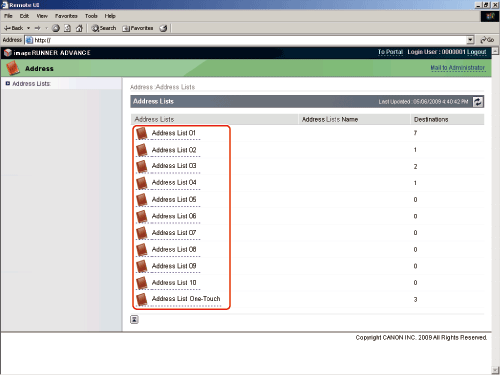
If the selected subaddress list is protected by a password, a screen prompting you to enter the password appears. Enter the password → click [OK].

  • If Access Number Management is set to 'On', only those addresses that are not set with an access number are displayed. To also display addresses set with an access number, enter the access number in [Access Number] → click [Display]. To only display addresses that are not set with an access number, click [Display] without entering an access number.
  • For instructions on setting Access Number Management, see "Settings/Registration."
  • To only display a certain address type, click the Type drop-down list, select the desired address type, and click [Display]. You can also limit the number of addresses that are displayed by selecting the letter that the address begins with from the Initial drop-down list and clicking [Display]. If you select [All], all addresses stored under the selected address lists are displayed.
  • If you select [Address List One-touch], click the List Number drop-down list → select the desired one-touch button number.
  1. Change the settings of the selected address list, or select an operation to be performed for an address.
  • To change the name of the subaddress list:
  • To store an address:
  • To store a group address:
  • To move an address:
  • To delete an address:
  • To edit the details of the address:
  • To store a new address in an unregistered one-touch button:

  • To change the name of the subaddress list:
  • Click [Register Address List Name].
  • Enter the new name for the address list → click [OK].

The name for [Address List One-touch] cannot be changed.


  • To store an address:
  • Click [Register New Destination].
  • This button does not appear if [Address List One-touch] is selected.
  • Specify the type of address from the Type drop-down list → enter the necessary information depending on the type of address you have selected → click [OK].

If the destination is an e-mail address or I-fax, you can select [Receive Divided Data] to ensure that the size of data sent to the destination does not exceed the limit by dividing it into several files.


  • To store a group address:
  • Click [Register New Group].
  • This button does not appear if [Address List One-touch] is selected.
  • Enter a name for the group in [Group Name] → click [Address List] under Members List.
  • Click [Select] next to each address you want to add to the group address → click [OK].
  • Verify the settings → click [OK].

To delete an address from the Members List, select the address → click [Delete].

If you want to store documents sent to this group in a Mail Box, select [Store In Mail Box] → select the inbox from the drop-down list.

If you include a Mail Box in the destination (group) to which you are sending your document, the document is stored in the selected Mail Box for later use. Documents stored in a Mail Box can be printed and sent to other destinations.


  • To move an address:
  • Click the radio button next to the address name → click [Move to Another Address List].
  • This button does not appear if [Address List One-touch] is selected.
  • From the Address Lists drop-down list, select the Address Lists where you want to move the address → click [OK].

  • To delete an address:
  • Click the radio button next to the address name → click [Delete Destinations] → click [OK] on the dialog box that appears to ask for your confirmation to delete the selected address.
  • Once an address is deleted, it cannot be retrieved.

  • To edit the details of the address:
  • Click the name of the address.

You can also display the details of the address by clicking the icon to the left of the address name.

If [Address Book One-touch] is selected, you can also click the one-touch button number of the address to display its details.

  • Click [Edit].

You can edit the name of a group address and members list by clicking [Edit] on the Group Property screen.

  • Make the necessary changes → click [OK].
  • Dividing data

For an e-mail or I-fax destination, select [Receive Divided Data] to ensure that the size of data sent to the destination does not exceed the limit by dividing it into several files.

  • Changing a password

For a file server destination, you can only change the password if you have selected the [Change Password] check box.

  • You can set or change the password only if a file server address is selected.
  • For more information on the various settings for the different types of addresses, see "Settings/Registration."
  • For information on dividing and sending large documents, see "Settings/Registration."

  • To store a new address in an unregistered one-touch button:
  • Click [Unregistered] of the desired one-touch button on the Address List One-touch screen.

You can also display the Register New Address screen by clicking the number to the left of [Unregistered].

If you want to store one-touch buttons 013-200, click the List Number drop-down list.

  • Select the type of address that you want to store → enter the necessary information → click [OK].
  • For more information on the various settings for the different types of addresses, see "Settings/Registration."

  • Back To Top





