Remote UI > Installing a Certificate File > Installing/Checking/Erasing a User Signature Certificate and Key Pair
*
Installing/Checking/Erasing a User Signature Certificate and Key Pair

Return to Overview


This function installs/checks/erases a user certificate and key pair contained in a digital signature file.

You can use a key pair and user signature certificate in the machine with the following algorithms:

Signature Algorithm Key Length

sha1RSA

1024 bits/2048 bits

You can use a key pair and user signature certificate in the machine with the following formats:

Certificate Format File format File extension

X.509v1/X.509v3

PKCS#12 .pfx/.p12

Remark
  • This function is available only if the Universal Send Digital User Signature Kit is activated and you log in to the machine using the SSO-H login service.

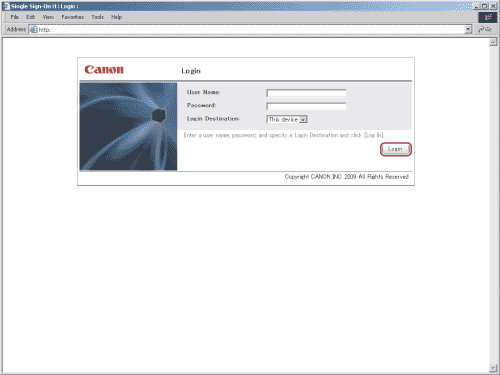
  1. Enter the user name and password → select the Login Destination → click [Login].

  • If you are using the SSO-H Domain Authentication, you must match the time settings of the server with Active Directory installed and the time settings of the machine and the computer to log in with.
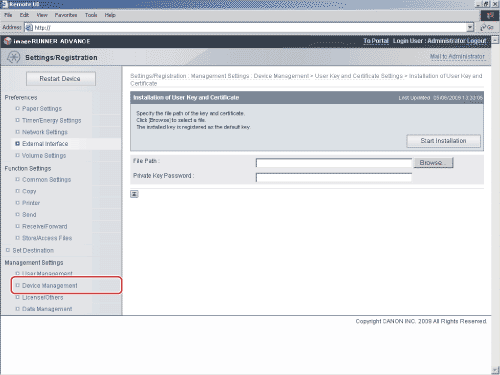
  1. Click [Settings/Registration] → [Device Management] from the menu that appears under Management Settings → [Key and Certificate Settings].
  1. Click [User Key and Certificate Settings].

If an administrator has logged in, all of the registered user keys and certificates are displayed.

If a general user has logged in, only their user key and certificate are displayed.

  • To install a user key and certificate:
  • To check/erase a user key:

  • To install a user key and certificate:
  • Click [Install].
  • Enter the path for the key pair and certificate file to install and the password of the private key → click [Start Installation].

The maximum number of characters that you can enter for the file name is twenty, excluding the file path and file extension '.p12' or '.pfx'. Specify the name of the file to install so that it will not exceed twenty characters.

  • Up to 100 user certificates can be installed, with a maximum of one user certificate per user. An error is displayed if you attempt to install more than 100 certificates, or more than one user certificate for a user.

  • To check/erase a user key:
  • To check a user key.

Click the user key you want to check.

  • To erase a user key.

Select the user key you want to erase → click [Erase].


  • Back To Top