Remote UI > Installing a Certificate File > Installing a Key Pair and Server Certificate

*
Installing a Key Pair and Server Certificate

Return to Overview


You can use a key pair and server certificate in the machine with the following algorithms:

Signature Algorithm Key Length

sha1RSA/sha256RSA/sha384RSA*
/sha512RSA*/MD2RSA**/MD5RSA**

512 bits/1024 bits/2048 bits/4096 bits

*You can only use these algorithms with a key length equal to or longer than 1,024 bits.
**You can only use these algorithms when installing from the Remote UI.

You can use a key pair and server certificate in the machine with the following formats:

Certificate Format File format File extension
X.509v1/X.509v3* PKCS#12 .pfx/.p12

*You can only use these formats when installing from the Remote UI.


Remark
  • For more information on registering a key pair and server certificate file, see "Registering a Key Pair File and Server Certificate File Installed from a Computer" in "Security."
  • For more information on generating a key pair and server certificate file, see "Generating a Key Pair and Server Certificate" in "Security."
  • To install a key pair and server certificate, it is necessary to log in as an administrator.

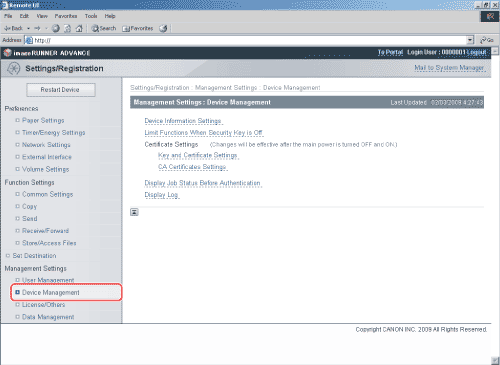
  1. Click [Settings/Registration] → [Device Management] from the menu that appears under Management Settings.

  1. Click [Key and Certificate Settings] → [Register Key and Certificate].
  1. Click [Install].
  1. Enter the path for the key pair and certificate file to install → click [Start Installation].

The maximum number of characters that you can enter for the file name is eight, excluding the file path and file extension '.p12' or '.pfx'. Specify the name of the file to install so that it will not exceed eight characters.


  • Back To Top