Remote UI > Customizing the Machine's Settings (Settings/Registration)
*
Customizing the Machine's Settings (Settings/Registration)

The machine's custom settings can be edited with the Remote UI.

Follow the procedure below to customize the machine's settings from the Remote UI.


Remark
  • Some settings can only be set by the administrator. For more information, see "Available Settings for Administrator Table (Remote UI)."
  • The custom settings that are available using the Remote UI are part of the settings available from the control panel of the machine. For instructions on using the control panel to specify the machine's custom settings, see "Settings/Registration."
  • Of the operations that can be performed from (Settings/Registration) on the control panel of the machine, the following settings can be performed from the Basic Tools menu on the portal page of the Remote UI.
  • Set/register Mail Boxes: Can be set from [Access Received/Stored Files]. (See "Managing Inboxes.")
  • Register destinations: Can be set from [Address Book]. (See "Managing the Address List.")

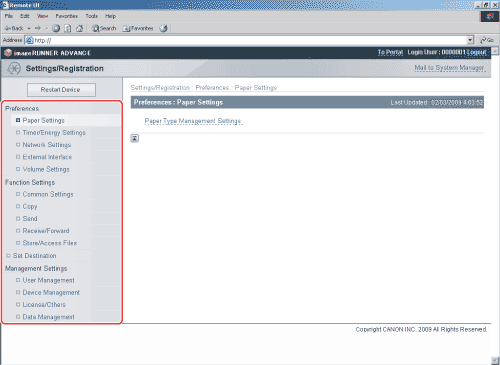
  1. Click [Settings/Registration] → select the setting you want to edit from the menu that appears.

  1. Click the type of custom setting that you want to specify.
  1. Specify all the necessary fields → click [OK].
  • If you are changing the network settings, the machine must be restarted to enable the settings. Turn OFF the main power of the machine, and turn the main power back ON again. You can restart the machine from the Remote UI. (See "Restarting the Machine.")
  • For more information on each setting, see other categories and manuals relating to the function that needs to be set.
  • For information on how to turn ON and OFF the main power of the machine, see "Before You Start Using This Machine."

  • Back To Top