Details of each item are shown below.
| [Enable Department ID Management]: |
If this check box is selected, Department ID Management is enabled. When Department ID Management is enabled, the user must enter the Department ID to be able to use functions, such as the Copy and Send functions. (This enables you to keep track of the total number of prints by department and set impression limits.) In addition, when Department ID Management is enabled, the user must enter the Department ID and password to be able to execute jobs and perform operations on inboxes. If the optional Card Reader-C1/Copy Card Reader-F1 is attached, this check box does not appear. |
| [Limit Functions]: |
This setting enables you to select the function for which you want to set Department ID Management. If this check box is selected, Department ID Management is set for all functions. If this check box is not selected, Department ID Management is set for the Print function only. |
| [Allow Printer Jobs with Unknown IDs]: |
Select this check box to enable printing for computers that use printer drivers that do not support Department ID Management. If this check box is not selected, only computers with printer drivers that support Department ID Management can print. |
| [Allow Remote Scan Jobs with Unknown IDs]: |
Select this check box to enable remote scanning for computers that use printer drivers that do not support Department ID Management. If this check box is not selected, only computers with printer drivers that support Department ID Management can perform remote scanning. |
| [Allow Black Copy/Print Jobs]: |
If you select this, you can perform black-and-white copying/inbox document printing from the control panel of the machine without entering a Department ID and password, even when Department ID Management is set. You can also perform black-and-white printing of inbox documents from the Remote UI. |
| [Allow Black Printer Jobs]: |
If you select this, you can perform black-and-white printing from printer drivers that do not support Department ID Management. |
| [Count Each Page as 2 (Large Size Only):]: |
Select this check box to,,,, |
| [Clear All Counts]: |
Click this button to reset the counter to zero for all departments. |







 (Settings/Registration) → [User Management] → [Dept. ID Management]. For instructions on using the control panel to specify Department ID Management settings and more information on Department ID Management, see "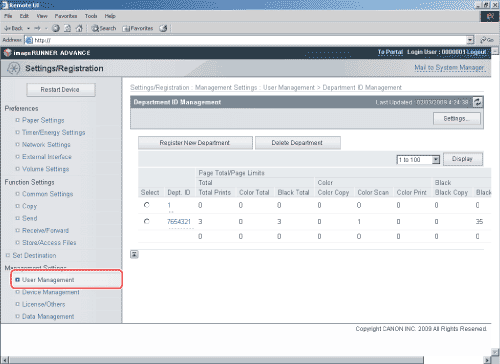
 ] (Dept. ID Group) drop-down list → select a group from the drop-down list.