|
|
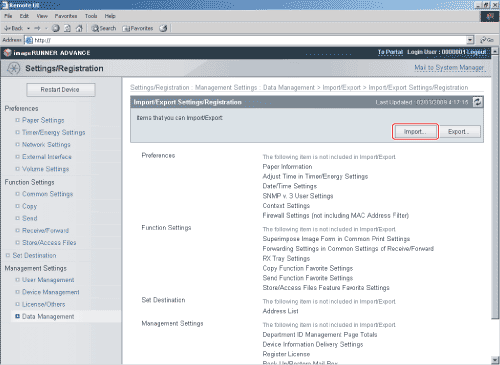
- Click [Browse] → select the file to import → click [Start Import].
- You cannot import the data exported from a machine other than the imageRUNNER ADVANCE C9075 PRO/C9065 PRO/C7065/C7055.
- You may experience difficulties importing data between the same series machines if the attached optional products differ.
- When Settings/Registration settings are imported, the System Manager ID, Department IDs, Address Book password, and Network settings are automatically overwritten.
- The machine must be restarted to enable the imported Settings/Registration settings. After importing, turn OFF the main power of the machine, and turn the main power back ON again.
- After importing Settings/Registration settings, the Remote UI cannot be used to perform other operations until the machine is restarted. Turn OFF the main power of the machine, and turn the main power back ON again.
- SNMP v. 3 User and Context Settings in SNMP Settings in Network Settings cannot be imported/exported.
- Do not import any files while the machine is executing other jobs.
|