Remote UI > Import/Export Function > Saving Forwarding Settings in Files (Export)
*
Saving Forwarding Settings in Files (Export)

Return to Overview


You can store forwarding settings as a file in your computer.


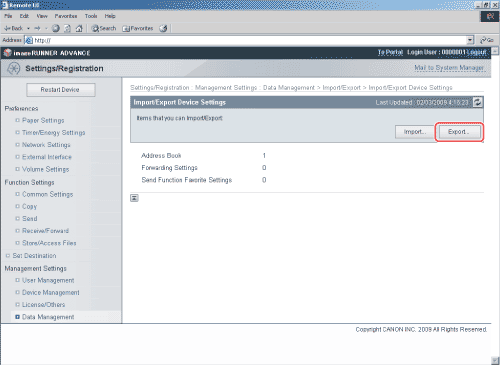
  1. Click [Settings/Registration] → [Data Management] from the menu that appears under Management Settings → [Import/Export] → [Device Settings (Forwarding Settings, Address Book, Send Function Favorite Settings)] → [Export].

  1. Click [Start Exporting].

Details of each item are shown below.

[Password]: Enter the password to encrypt the Address List certified information.
[Confirm]: Enter the password again. If the password you enter here is different from the one you entered for [Password], an error dialog box appears.
  • [Password] and [Confirm] are displayed if the following setting is specified:
    [Settings/Registration] → [Set Destination] → Address Book Export Settings] → [Including Password When Exporting Address Book] is selected.
  1. Follow the instructions on the screen to specify the location where you want to save the file.

  • Back To Top