|
|
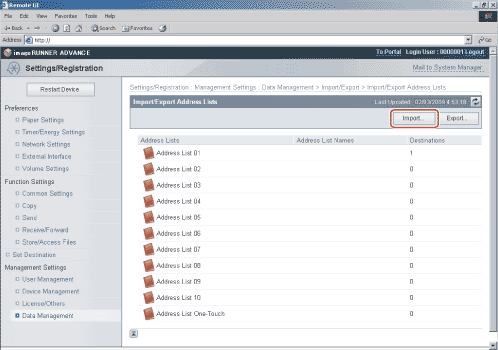
- Select the file to import → specify the necessary fields → click [Start Importing].
Details of each item are shown below.
| [Address List]: |
Select the subaddress list to be imported. |
| [Import Method]: |
Select the import method.
- Append: The addresses in the file are added to the machine's Address List. No changes are made to the pre-existing addresses in the Address List.
- Delete and Overwrite: All addresses stored in the machine are deleted, and the contents of the file are loaded into the machine.
|
| [File Path]: |
Specify the location of the file to load. |
| [File Format]: |
Select the format of the file that is to be loaded.
- Custom Format: Select this if the file to be imported was saved and exported by another machine that is similar to this one.
- LDAP Format: Select this if the file is to be imported from another application.
|
If you want to import an encrypted address list file, select [Decode Address List Certified Information] → enter the correct password in the [Password] entry box.
- When importing Address Lists 1 to 10, if you select [Add] for [Import Method], addresses with the same name as those already stored on the machine will be registered as new destinations with the same name.
- If you import one-touch buttons stored in an Address List, [Add] in [Import Method] is switched to [Overwrite].
- If you select [Delete and Overwrite] as the [Import Method], the addresses in the file are registered after all the addresses stored in the machine are deleted.
- If you select [LDAP Format], only e-mail addresses can be imported. The contents of one-touch buttons are not imported when [LDAP Format] is selected. To save all the information stored in the file, select [Custom Format].
- The name of the address book is not imported.
|