| |
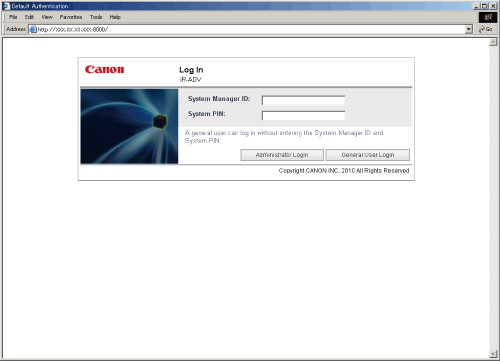
- If you are logging in as an administrator, enter the System Manager ID and System PIN → click [Administrator Login]. If you are a general user, click [General User Login].
The default screen is shown below. If Department ID Management or SSO-H authentication is set, enter the necessary items for each log in.
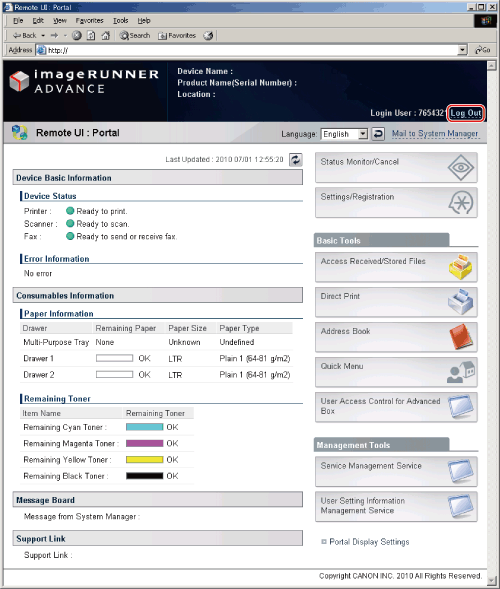
The Portal page of the Remote UI is displayed.
- To use the Domain Authentication user authentication system of SSO-H, it is necessary to match the current time on the server in which Active Directory is running with the machine (and the computer to log in with).
- If Default Authentication and Department ID Management are set, enter the Department ID and password to log in.
- You can use only alphanumeric characters,- (hyphen), or _ (underscore) for a user name for SSO-H authentication. You can log in only if you use valid characters.
- You can select up to 200 trusted domain names in addition to the domain name the machine belongs to for the DNS Domain Name.
- Default Authentication and SSO-H cannot be used simultaneously.
|