






| Overview of This Function |
|
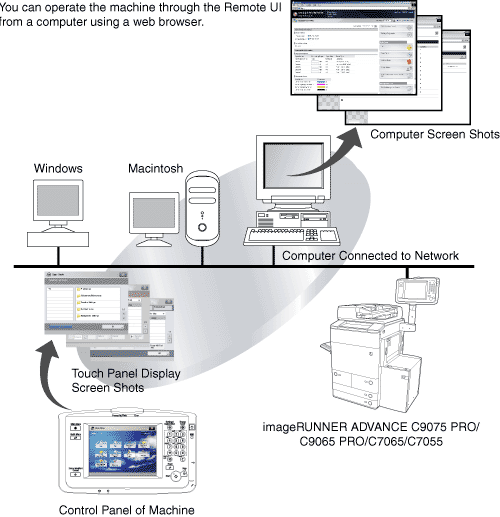
The Remote UI (User Interface) is preinstalled software in the machine that enables you to access the machine's functions by using a web browser. For example, the Remote UI enables you to access the machine to check job status, execute jobs, and specify various settings. To be able to use the Remote UI, all you need is a web browser and a network connection between your computer and the machine.
The Remote UI enables you to access the machine via a network, enabling you to display the current status and settings for the machine, and the status of all information and job processing. You can manage the machine from a computer connected to the network without having to perform operations on the machine itself.
You can check the status of the machine and consumables on the left side of the Remote UI portal page. (See "The Portal Page of the Remote UI.") |
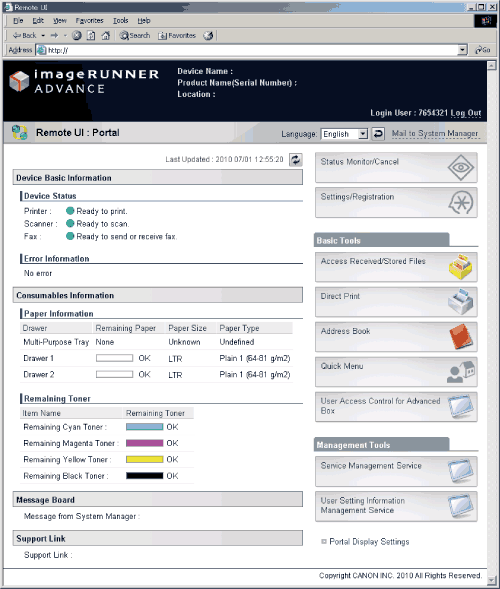
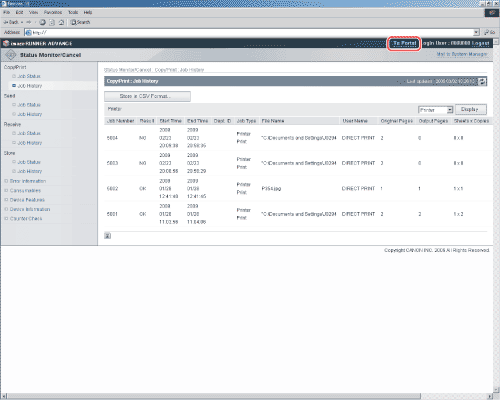
The Remote UI enables you to pause and resume jobs, view and print jobs stored in inboxes, and change various settings from a computer without using the machine's control panel. The right column of the Remote UI portal page contains the function buttons, which enable you to navigate the functions of the Remote UI. (See "The Portal Page of the Remote UI.") To return to the top page, click [To Portal]. This displays information such as machine status and product name.
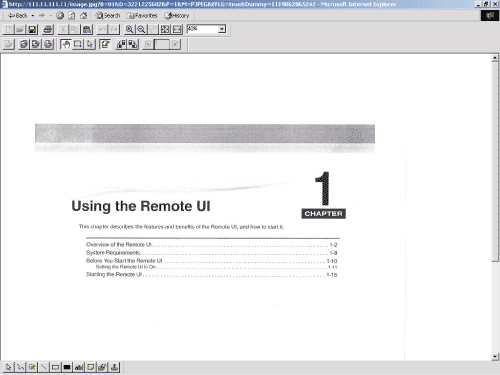
You can view documents in the machine's inboxes in the TIFF or JPEG format by clicking [Access Received/Stored Files].
|
| Remark |
|
||||||