






| Specifying Network Settings from the Touch Panel Display |
|
To "Settings/Registration Table" To specify the network settings for the machine, press You can specify the network settings in [Network] in [Preferences], according to the type of network environment you are using. The following screen shots show the flow of operations for specifying the network settings.
To move up one level, press [Up]. |
 (Settings/Registration) on the control panel → log in as the administrator using the touch panel display. For information on the type of administrator, see "Administrator Settings," in "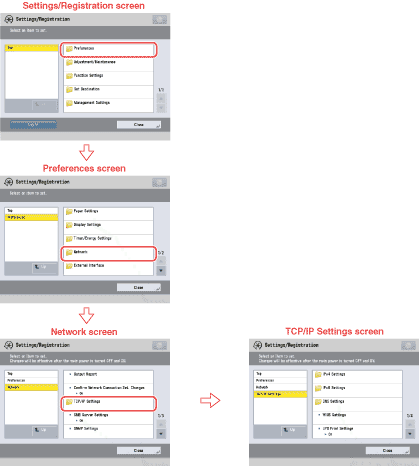
| Remark |
|
|
|||||