| |
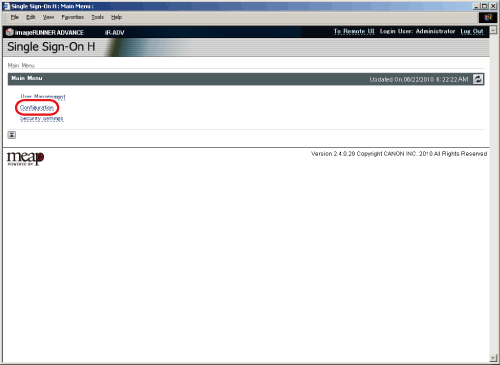
- Select the number of user names you want to display from [Number of Login Users to Display] → click [Update].
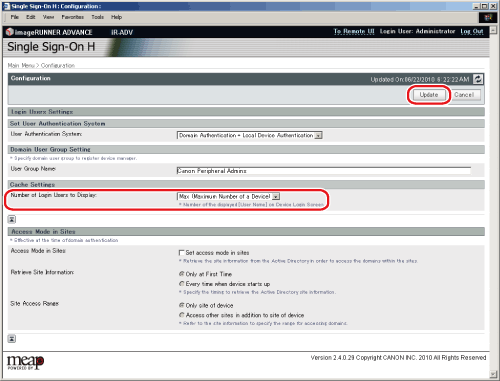
[Number of Login Users to Display]:
| 0 |
[ ] is not displayed when you log in from the touch panel display of the machine. Enter the user name and password on the login screen → press [Log In]. ] is not displayed when you log in from the touch panel display of the machine. Enter the user name and password on the login screen → press [Log In]. |
 |
| 1 |
Only the information of the last user who logged in from the touch panel display of the machine is displayed on the drop-down list. Enter the user name and password on the login screen → press [Log In]. |
|
| Max (Maximum Number of a Device) |
The information of the last seven users who logged in from the touch panel display of the machine is displayed on the drop-down list. Enter the user name and password on the login screen → press [Log In]. |
|
- The Number of Login Users to Display setting is enabled only after you restart the machine. After changing the settings, turn OFF the main power of the machine, wait at least 10 seconds, and then turn ON the main power again. For instructions on turning ON and OFF the main power of the machine, see "Before You Start Using This Machine."
|