MEAP > Before Logging in to SSO-H > Activating Use HTTP in MEAP Settings
*
Activating Use HTTP in MEAP Settings

Return to Overview


Follow the procedure below to set [Use HTTP] to 'On'. Setting [Use HTTP] to 'On', enables you to access the machine from your Web browser.

Use the control panel of your machine to set up MEAP functions.


Remark
  • You cannot connect to the machine via a proxy server. Specify the following settings if you are working in an environment using a proxy server (as these settings differ, depending on the network environment, contact your network administrator).
  • In the proxy server settings of your web browser, enter the IP address of your machine in the [Exceptions] (addresses that do not use a proxy) list.
  • Only enter characters in your web browser that can also be entered from the touch panel display of the machine. Otherwise, the characters you enter from your web browser may not be displayed or recognized correctly on the touch panel display.
  • You cannot use SSO-H if your web browser is not set to enable cookies, JavaScript, and JavaApplet.
  • The default setting is 'On'.
  • To specify the Management Settings (Settings/Registration), you must log in by entering the System Manager ID and System PIN.
  • By setting [Use HTTP] to 'On', you can open a necessary port. However, it is recommended that it is set to 'Off', if a port is not used. If you leave the port open, an unauthorized user may access the machine.

  1. Press (Settings/Registration) → [Preferences].
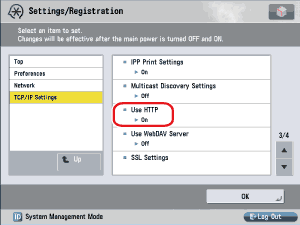
  1. Press [Network] → [TCP/IP Settings] → [Use HTTP].

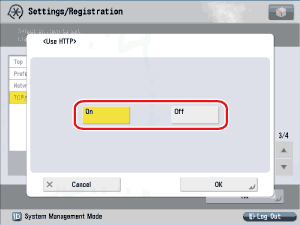
  1. Press [On].

[On]: HTTP server is used.

[Off]: HTTP server is not used.

  • To use SSL, set [SSL Settings] in [MEAP Settings] in [License/Other] in [Management Settings] (Settings/Registration).
  • Settings for [SSL Settings] are also applied to the settings for [Use SSL] in [Remote UI] in [Management Settings] (Settings/Registration).
  • To set [SSL Settings] to 'On', it is necessary to set the key pair and server certificate necessary for performing Encrypted SSL communications in [Certificate Settings] in [Management Settings] (Settings/Registration). For information on generating the key for SSL, see "Key Pair and Server Certificate Settings for Encrypted SSL Communication."
  1. Press [OK].

The selected mode is set.

  1. Turn the main power of the machine OFF, wait 10 seconds, and then turn the power ON.
  • The setting for [Use HTTP] and [SSL Settings] is activated only after you restart the machine (the main power switch is turned OFF, and then back ON). For instructions on turning the power ON/OFF, see "Before You Start Using This Machine."

  • Back To Top





